Classification Screen
Data is captured on the following tab(s) of the edit screen: Overview and Allowed Values. Below is a list of descriptions for the fields in the sections on each tab.
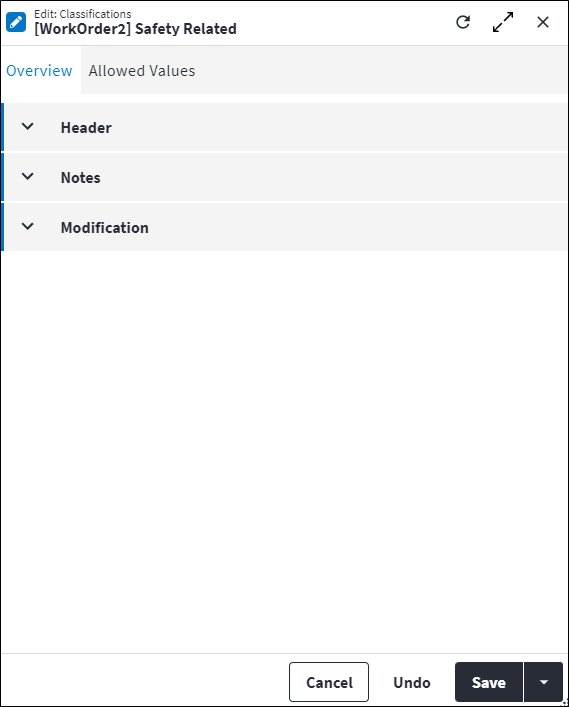
Overview
The Overview tab contains the following section(s):Header
- Classification Type: A classification type for grouping on reports and enquiries. Possible values are:
Work OrderTaskTask FeedbackCalendar HourWork Order Status
- Description: The name of the classification.
- Classification Number: The number used to identify the classification within a classification type.
- Permission Tree: A field linked to a permission record in a permission tree, that determines whether a user has rights to access records and/or make changes to records. This is assigned by the system where possible.
Notes
Add additional details, comments or other relevant information.Modification
Displays details of when the record was created and last updated. This section is autopopulated and requires no user input.Allowed Values
A range of allowed values are created for a specific classification. For example Safety Related and Non Safety Related are possible allowed values for the classification Safety Related. There is no limit to how many allowed values a classification can have.
Specifying allowed values for a classification ensures that the accuracy of the data and the speed of the data entry is maximised when using a PDA for data collection.
The following information is captured when allowed values are linked to classifications:
- Code: A unique code that identifies the allowed value for the classification.
- Description: A description for the Code.
- Sequence Number: The sequence in which the records are listed. Use the sequence number to list the records in a logical order.
- Is Active: Ticked if the record is active and available in lookup lists.
Assist custom actions
The following custom actions are available in the Assist panel in the sidebar. Keep in mind that some of these custom actions are only available from the edit screen, while others are available from both the dashboard and edit screen.- Change Permission Tree: Refer to Change Permission Tree.
- Add to Compare: Refer to Add Items for Comparison.
- Cross References: Refer to Perform Cross Reference.
- View Changelog: Refer to View Changelog.