Requisition Item Screen
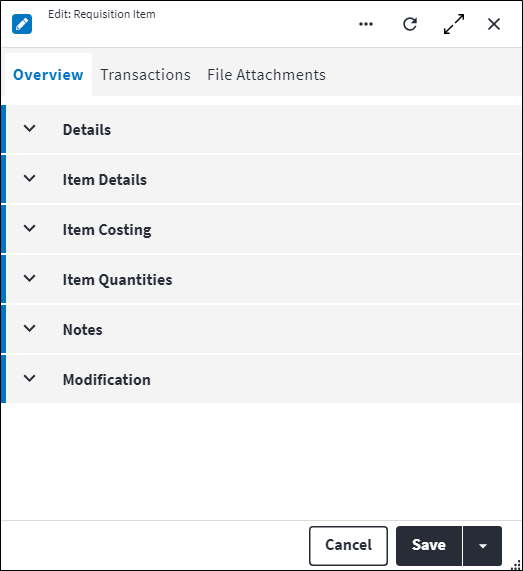
Data is captured on the following tab(s) of the edit screen: Overview, Transactions, Approvals and File Attachments. Below is a list of descriptions for the fields in the sections on each tab.
Take note: When a requisition item is added to a requisition, a work task spare is created on the work order and some of the financial fields on the requisition item becomes read-only. These fields can only be changed on the work task spare of the work order.
Overview
The Overview tab contains the following section(s):Header
- Requisition Code: Read-only field indicating the requisition to which the requisition item is linked.
- Work Order Task: The work order task to which the requisition item is linked. Work Order Task is mandatory and defaults to the first task of the linked work order.
- Work Order Task Spare: The work order task spare that was created for the requisition item. This field is read-only.
- Permission Tree: A field linked to a permission record in a permission tree, that determines whether a user has rights to access records and/or make changes to records. This is assigned by the system where possible.
- Line Number: A sequential number allocated to each line item added, starting at
1. This field is read-only. - Sequence Number: The sequence in which the records are listed. Use the sequence number to list the records in a logical order. The Sequence Number can only be edited if the Requisition Status of the parent requisition is
Awaiting Approval. - Requested On: Defaults to the requisition Requested On date and time.
- Required On: Required On defaults to the requisition Required On date and time and can only be edited if the Requisition Status of the parent requisition is
Awaiting Approval. - Approval Workflow Progress: The progress relating to the approval process of this requisition item. Possible values are:
- Null: The Status of the related requisition is not yet
Awaiting Approval Workflowor the approval workflow process has not been enabled for this site. Not Started: The Status of the related requisition isAwaiting Approval Workflowand there are matched expressions, but no approvals or rejections have taken place on this requisition item.Rejected: One of the required approvals on the requisition item has been unsuccessful.In Progress: One or more of the required approvals on this requisition item have been successfully completed and one or more are still outstanding.Approved: All of the required requisition approvals on this requisition item have been successfully completed.
- Null: The Status of the related requisition is not yet
Item Details
- Spare Type: The type of spare being added. Possible values are:
Stock ItemCoded Non-Stock ItemDirect PurchaseContractor.
- Filter By: Limit the number of records returned by specifying filter criteria to apply when looking up spares as part of creating a stock requisition.
If Spare Type isStock Item, possible values for Filter By are:Global Stock Items(default): Stock items for all warehouses are displayed.Site Warehouse: Only stock items for the work order's site warehouse are displayed.Asset Spares: Only the work order's asset material masters are displayed.
Coded Non-Stock Item, possible values for Filter By are:Global Coded Non-Stock Items(default): Coded non-stock items for all warehouses are displayed.Site Warehouse: Only coded non-stock items for the work order's site warehouse are displayed.
Direct PurchaseorContractor, Filter By is not applicable.
Filter By is only visible on the create screen. - Item: The requisition item selected. This field is only visible if the Spare Type is
Stock ItemorCoded Non-Stock Item. - Warehouse: The warehouse in which a stock or coded non-stock item is situated. The default value is set from the warehouse specified on the stock or coded non-stock item. This field is only visible if the Spare Type is
Stock ItemorCoded Non-Stock Item. - Code: A unique code for the requisition item. This field is only visible if the Spare Type is
Direct PurchaseorContractor. The Code can be edited for direct purchase items if the Requisition Status of the parent requisition isAwaiting Approval. - Description: A short description for the requisition item. This field is only visible if the Spare Type is
Direct PurchaseorContractor. The Description can be edited for direct purchase items if the Requisition Status of the parent requisition isAwaiting Approval. - Supplier: The supplier of the stock items. The default value is set from the supplier specified on the stock or coded non-stock item. This field is read-only if the Spare Type is
Stock ItemorCoded Non-Stock Item. The Supplier can be edited for direct purchase items if the Requisition Status of the parent requisition isAwaiting Approval.
Item Costing
- Work Order Task Spare Currency: If Spare Type is
Stock Item, the currency specified for the warehouse's site is used. If Spare Type isCoded Non-Stock Item,Direct PurchaseorContractor, the currency specified for the supplier is used.
Spare Currency is read-only if Spare Type isStock Item. - Unit Cost in Spare Currency: The cost of the item in the spare currency. This field is read-only if the Spare Type is
Stock ItemorCoded Non-Stock Item. - Total Cost in Spare Currency: The total is cost is calculated as follows: Quantity Required x Unit Cost in Spare Currency. The Unit Cost in Spare Currency can be edited for direct purchase items if the Requisition Status of the parent requisition is
Awaiting Approval. - Work Order Currency: The spare work order currency which is derived from work order site currency. This field is read-only.
- Unit Cost in Work Order Currency: The cost of the item in the work order currency. This field is read-only.
- Total Cost in Work Order Currency: The total is cost is calculated as follows: Total Cost in Spare Currency x Spare To Work Order Currency Rate Value. The Spare to Work Order Currency Rate Value is specified on the work order task spare. This field is read-only.
- Spare to Work Order Currency Rate Value: The conversion rate between the requisition site and source currencies. This field is only visible to the user upon creation of a new requisition item record.
- Financial Year Period: The financial year period defaults to the Financial Year Period of the work order site. This field is only visible to the user upon creation of a new requisition item record.
- General Ledger: The general ledger to which the costs will be allocated. This defaults to the general ledger specified on the work order. The General Ledger can only be edited if the Requisition Status of the parent requisition is
Awaiting Approvaland there are no transactions against the requisition item. - Cost Centre: The cost centre to which the costs will be allocated. This defaults to the cost centre specified on the work order. The Cost Centre value can only be edited if the Requisition Status is
Awaiting Approvaland there are no transactions against the requisition item. - Cost Element: The cost element to which the costs will be allocated. The value is determined by looking at the following entities and is set to the first populated value in the following order: User Options Item Type; Stock or Coded non-stock items cost element. The Cost Element value can only be edited if the Requisition Status is
Awaiting Approvaland there are no transactions against the requisition item.
Item Quantities
This section is not visible upon creation of a new requisition item record.
- Quantity Required: The number of items the user is requesting. The Quantity Required value can be reduced (not increased) if the Requisition Status of the parent requisition is
Approved,CompletedorClosed. - Unit of Measurement: The unit of measurement for the stock quantities. This field is only visible if the Spare Type is
Direct PurchaseorContractor. The Unit of Measurement can be edited for direct purchase items if the Requisition Status of the parent requisition isAwaiting Approval. - Quantity Issued: The number of items that have already been issued. This field is read-only.
- Remaining Quantity to Issue: The remaining number of items that could still be issued.
- Quantity Ordered: The number of items that have been ordered. The Quantity Ordered value can be changed if the Spare Type is not
Stock Itemand the Requisition Status of the parent requisition isAwaiting Approval,Approved,CompletedorClosed.This field is mainly used and populated by the material manager application. - Quantity Reserved: The number of items that is already approved but not yet issued for all open requisitions. The Quantity Reserved value can be changed if the Requisition Status of the parent requisition is
Approved,CompletedorClosed.This field is mainly used and populated by the material manager application.
Notes
Add additional details, comments or other relevant information.The Notes field can only be edited if the Requisition Status of the parent requisition is Awaiting Approval.
Modification
Displays details of when the record was created and last updated. This section is autopopulated and requires no user input.Requisition Item Transactions
The table shows a consolidated view for issues and returns done on a requisition item. Each time an issue or return is done an entry is created. This table is used as the reference point to work order costing and allows API integration. User defined fields are editable through integration.
Requisition Item Approvals
Organisations can streamline their approval processes by implementing multi-level approval workflows based on predefined values and user defined criteria. This is optional functionality that is enabled per site. Requisition approval workflows can be configured to be required on requisition header level or on requisition item level.
The Approvals tab displays the approvals assigned to all users for this record.
Refer to Approvals for more information.
Requisition Item File Attachments
The file attachments tab allows the user to upload and attach an object-specific file that applies only to this specific record. An example could be to attach an invoice to a work order for work completed.
The following file types can be attached to a record:
- PDF document
- Word document
- Excel spreadsheet
- Image file
- Audio file
- Video file.
Refer to File Attachments for more information.
Assist custom actions
The following custom actions are available in the Assist panel in the sidebar. Keep in mind that some of these custom actions are only available from the edit screen, while others are available from both the dashboard and edit screen.- Change Permission Tree: Refer to Change Permission Tree.
- Add to Compare: Refer to Add Items for Comparison.
- Issue All / Issue Specific Quantity: Refer to Issue or Return Requisition Items.
- Return All / Return Specific Quantity: Refer to Issue or Return Requisition Items.
- Cross References: Refer to Perform Cross Reference.
- View Changelog: Refer to View Changelog.