Tree Search
The tree search functionality enables the user to search for specific records within the tree based on specified criteria.
The tree search function is available on the asset type, asset, site and permission trees. The tree search panel is opened by clicking on the Search button on the toolbar.
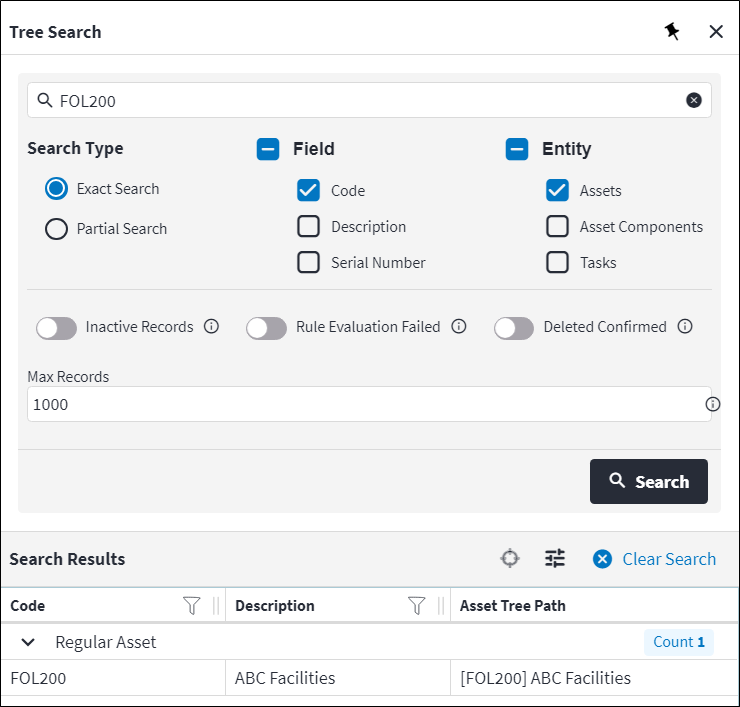
The Tree Search panel consists of two main sections: search filtering and search results.
Search filtering
The search criteria is specified in the search filtering section:
- Search input: Used to enter a search value, for example
FOL200. - Search Type: Specifies the type of search. Possible values are:
Exact SearchPartial Search.
- Field: Specifies the field to search on. A search is conducted of the code, description and/or serial number fields based on the value specified in the search input field and the Search Type specified.
Possible values are:CodeDescriptionSerial Number
- Entity: Specifies the entity to be returned in the results. If Assets is ticked, the search will return asset records. If Asset Components is ticked, the search will return component records. If Tasks is ticked, the search will return task records. Possible values are:
-
Assets Asset ComponentsTasks.
-
- Inactive Records: Toggle on to include inactive records in the search result.
- Rule Evaluation Failed: Toggle on to include records where rule evaluation failed in the search result. Refer to Rule Evaluation for more information.
- Deleted Confirmed: Toggle on to include records with Development Status value
Deleted - Confirmedin the search result. - Max Records: Specifies the maximum number of records to return based on the search criteria.
Search results
- The search result is grouped by entity type.
- The search result is limited to asset tasks and asset type tasks. Follow up- and suppressed tasks are not included in the search result.
- Highlighting a record in the search results section and then clicking on View in Tree (
 ), locates the record in the tree.