General Defaults Screen
Below is a list of descriptions for the fields in the general defaults system options.
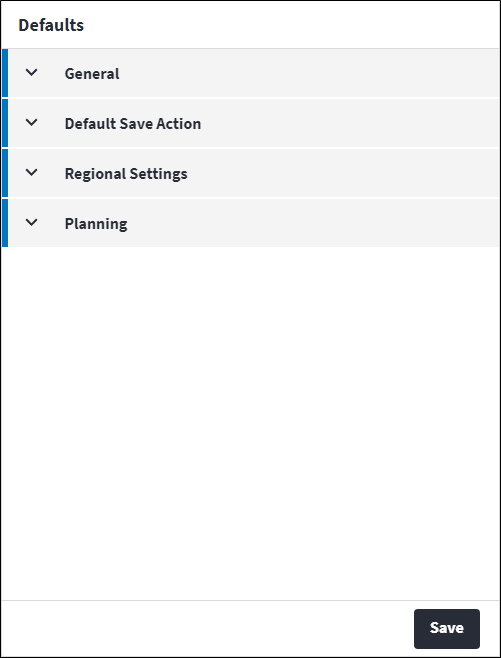
General
- Company Name: This name is applied to the asset type-, asset-, site- and permission tree ROOT node description. The field is limited to 100 characters.
- Synchronise Site Tree With Permission Tree: If this system option is enabled, a permission tree record will automatically be added to the permission tree when a site is added to the site tree. This is enabled by default. Once this system option is disabled, it cannot be enabled again and the link between the site tree and the permission tree will be permanently broken.
- Default Page Limit: The number of records that loads by default on a page across the system.
- Base Currency: The currency that is used by the organisation.
- Enable Costing: If this system option is enabled, financial transactions are created in the Costing table.
- Always Allow Multiple Option Values: The Allow Multiple Values field on an option specifies whether multiple option values are allowed to be defined on the entity it is being used on (for example Assets). This system option overrides the Allow Multiple Values setting. A warning is presented to the user when this system option is enabled.
- Auto Upper Case Codes: If this system option is enabled, the Code value of all new records for entities with a code is converted to upper case. Setting this option to true will not affect any existing records.
- Default Create Save Action: The default save action on all create screens. This field is mandatory. If the Default Create Save Action configured on the User screen differs from the selection made here, the User selection takes preference. Refer to User Options for more information. Possible values are:
Save and Close(default)Save and NewSave and Update.
- Default Update Save Action: The default save action on all edit screens. This field is mandatory. If the Default Update Save Action configured on the User screen differs from the selection made here, the User selection takes preference. Refer to User Options for more information. Possible values are:
Save(default)Save and Close.
Regional Settings
- Content Translate: Indicates whether translations should be enabled, ie whether the Content Translations toggle should be switched on. This toggle switch is used to apply content translations globally and is accessed by clicking
 . This will first default to the user setting, then to the user's site setting, then to the system options setting.
 - Date Separator: Define how the values in dates will be separated in On Key Plus. For example, the values can be separated by a slash (/) or a dot (.). This will first default to the user setting, then to the user's site setting, then to the system options setting and is a required field on the system options only. This format will applied throughout the system, excluding the changelog. Possible values are:
NoneSlashDot.
- Date Format: The format in which dates will be displayed in On Key. This will first default to the user setting, then to the user's site setting, then to the System Options setting and is a required field on the System Options only. This format will be applied throughout the system, excluding the changelog. The following date formats are available:
YYYYMMDDYYYYDDMMDDMMYYYYMMDDYYYY.
- Time Format: The format in which time will be displayed in On Key. This will first default to the user setting, then to the user's site setting, then to the System Options setting and is a required field on the System Options only. This format will be applied throughout the system, excluding the changelog. The following time formats are available:
Clock24hClock12h.
- First Week of Year: The first week of a new year. This is used to determine the week number. Possible values are:
Starts on Jan 1(default): A week will be regarded to be the first week of the year if it includes 1 January.First 4 Day Week: A week will be regarded to be the first week of the year if it includes at least four calendar days of the new year.First Full Week: A week will be regarded to be the first week of the year if it includes seven calendar days of the new year.
- Default Language: This is the language in which On Key will be displayed when the user logs in. The default language can be set on Users, Sites and System Options, but is only a required field in System Options.
If a default language is set on the user, it takes priority and is applied. If not, the system will check whether the site that's associated with the user has a default language set and apply that.
If the default language is neither specified on the user nor the user's site, then the default language that's set in the System Options is applied.
The default language being applied is illustrated with in the user's account information, which is accessed by clicking then Language.
 - Report Server UI Language: A language and region setting which specifies the language, and how the date and number formats are displayed on Wyn's user interface.
If Report Server UI Language is not specified here, the language will default to the user's site Report Server UI Language, then to the system options setting. The Report Server UI Language value may be null. - Report Server Report Language: A language and region setting which specifies language, and how the date and number formats are displayed in the report in Wyn.
If Report Server Report Language is not specified here, the language will default to the user's site Report Server Report Language, then to the system options setting. The Report Server Report Language value may be null.
Planning
- Default Trade: The default behaviour of the Trade lookup on the work order screen. Possible values are:
All Trades(default)Section Trades.
Assist custom actions
The following custom actions are available in the Assist panel in the sidebar. Keep in mind that some of these custom actions are only available from the edit screen, while others are available from both the dashboard and edit screen.- View Changelog: Refer to View Changelog.
- View System Options Changelog: Refer to View System Options Changelog.