Work Orders Defaults Screen
Below is a list of descriptions for the fields in the default work order system options.
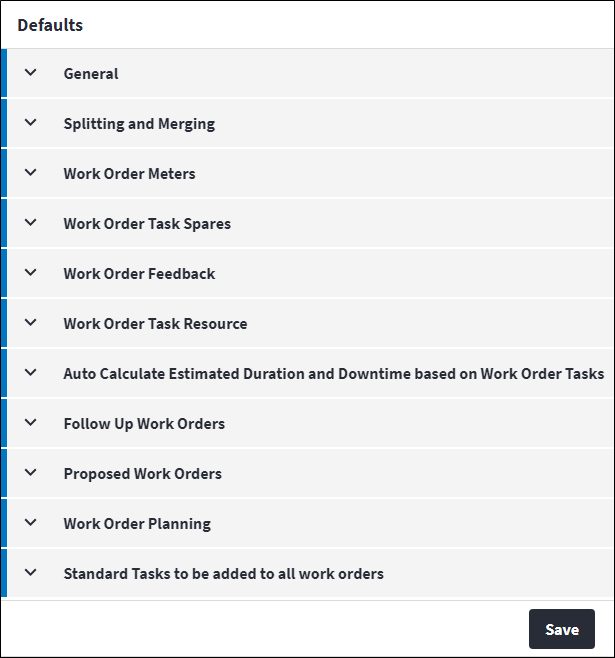
General
- Code Length: The number of characters used for automatically generated work order codes. The code must contain a minimum of four characters, including the prefix, and the maximum is 15 characters.
- Scheduled Prefix: The work order code prefix used for scheduled work orders. This can be upper case or lower case. The default Scheduled Prefix is
S. When this is changed, a pop-up a pop-up requesting whether the code counter should restart will display. - Unscheduled Prefix: The work order code prefix used for unplanned work orders. This can be upper case or lower case. The default Unscheduled Prefix is
R. When this is changed, a pop-up requesting whether the code counter should restart will display. - Unscheduled Work Order Status: The status that unscheduled work orders will default to when they are created. The type of work's Work Order Status Code takes priority.
- Allow Work Orders without Assets: If this system option is enabled, it is not mandatory to specify an asset for a work order. This means that the Asset field can be null on work orders, although this is not best practice. It is important from an asset life cycle cost management perspective to link work orders to assets.
- Enable Service Level Agreements: The use of the service level agreement functionality is optional and can be enabled based on the client's requirements.
If Enable Service Level Agreements is set to false, no new SLAs will be applied to any work orders and no existing work order SLAs will be updated.
Enable Service Level Agreements can only be changed from true to false if:- there are no initialised service level agreements configured in the system, ie any existing service level agreement records have Is Initialised set to false; and
- no work order SLA measures are in status range.
- Enforce Asset Warranty: Specifies whether asset warranty logic is enforced when creating reactive work orders and saving work order tasks against assets or components with linked asset warranties. If set to false, asset warranty logic is not enforced even though the configuration of asset warranty records is allowed.
- Merged Work Order Cancelled State: The default status to be used for work orders that are cancelled as a result of work orders being merged. The selected status must have a
Cancelledbase status. - Merge Spares on Duplicate Asset Tasks: Specifies whether spares are merged on duplicate asset tasks. Possible values are:
AlwaysNeverOnly When Different.
- Merge Spares on Duplicate Standard Tasks: Specifies whether spares are merged on duplicate standard tasks. Possible values are:
AlwaysNeverOnly When Different.
- Merge Resources on Duplicate Asset Tasks: Specifies whether resources are merged on duplicate asset tasks. Possible values are:
AlwaysNeverOnly When Different.
- Merge Resources on Duplicate Standard Tasks: Specifies whether resources are merged on duplicate standard tasks. Possible values are:
AlwaysNeverOnly When Different.
- Merge Sub Tasks on Duplicate Asset Tasks:Specifies whether sub tasks are merged on duplicate asset tasks.
Possible values are:AlwaysNeverOnly When Different.
- Merge Sub Tasks on Duplicate Standard Tasks: Specifies whether sub tasks are merged on duplicate standard tasks. Possible values are:
AlwaysNeverOnly When Different.
- Allow Merging of Work Orders in Base Status: The statuses where merging is allowed. Possible values are:
Awaiting ApprovalApprovedAwaiting Approval or Approved.
- Only Merge Work Orders with Similar: Restrict the merging of work orders by filtering the available work orders to merge into the selected source work order based on the following options:
No RestrictionType of Work ClassesTypes of Work.
- Add Merge and Split Information on Work Order: Specifies whether merge and split information must be included on the work order Work Required.
- Apply Suppression on Split and Merge Action: Specifies whether suppression should be applied on the work order merge and split action. If false, suppression is only applied on generating work orders from proposed work order. If true, suppression is applied on the merge and split action.
Work Order Meters
- When Adding a New Usage Based Work Order Task, Use: Specifies which scheduled reading to populate the work order meter’s scheduled meter reading with. The scheduled meter readings are taken from the linked work order tasks. The corresponding due date will populate the work order meter’s scheduled date. This is applicable when work orders are generated or during the split operation, thus when a new work order is created with usage based tasks on it. Possible values are:
Highest ReadingLowest Reading.
- Maintain Work Order Meter Scheduled Date and Reading on Existing Work Order Meters: This is applicable for the split and merge process. If this system option is enabled, this setting ensures that the work order meter’s scheduled date and reading is in line with its work order’s tasks after the split or merge process. The work order meter’s scheduled date and reading is recalculated after the split or merge operation.
- Calculate Scheduled Meters Field on Work Orders: Specifies whether the Scheduled Meters field on work orders should be calculated. If set to false, Scheduled Meters is set to null.
If toggled from false to true, the Scheduled Meters field will be calculated for work orders that are generated after that point.
If toggled from true to false, previously calculated Scheduled Meter values will not be set to null, but the Scheduled Meters field will not be calculated for work orders that are generated after that point.
Work Order Task Spares
- Allow Direct Purchase Items: Specifies whether direct purchase items can be added as work task spares.
- Allow Contractor Items: Specifies whether contractor items can be added as work task spares.
- Contractor Items Codes Mandatory: Specifies whether the code must be captured when a work task spare is added for a contractor item. This is required for some third-party systems.
- Allow Task Spare Deletes: Specifies whether work task spares that have been saved on a work order can be deleted from work order tasks.
Work Order Feedback
- Automatically Update Completed On Date: Specifies whether a work order's Completed On date is automatically updated when work is completed. The Completed On date is set when the Work Performed is filled in. If disabled, the Completed On date manually has to be populated manually.
- Automatically Add Meter Readings to Usage Based Tasks: Specifies whether a meter's readings are automatically updated from work order feedback. Meter readings captured for meter-based tasks are automatically added to the meter. The meter readings are inserted in the meter readings table.
- Validate Task Completed Reason: Specifies whether the Not Completed Reason has to be populated with a preconfigured reason when Completed is cleared on the work order task. The validation can be set for
Mandatory TasksandAll Tasks. When the work order status changes to what is set in the Mandatory Tasks Completed Check, then for:Mandatory Tasks, a validation error will be raised when the work order task is Mandatory, Completed is cleared and the Not Completed Reason is empty.All Tasks, a validation error will be raised for the work order task when Completed is cleared and the Not Completed Reason is empty.
- Work Performed is Editable in Base Status: Specifies in which bases statuses Work Performed on a work order can be edited. Possible values are:
Approved(default)Approved and Completed.
Work Order Task Resource
- Automatically Assign Resource: Specifies whether a resource is automatically assigned to a work order task.
Auto Calculate Estimated Duration and Downtime based on Work Order Tasks
- Estimated Downtime for Follow Up Work Orders:Specifies whether the Estimated Downtime is auto calculated for follow up work orders.
- Estimated Downtime for Unscheduled Work Orders: Specifies whether the Estimated Downtime is auto calculated for unscheduled work orders.
- Estimated Downtime for Scheduled Work Orders: Specifies whether the Estimated Downtime is auto calculated for scheduled work orders.
- Estimated Duration for Follow Up Work Orders: Specifies whether the Estimated Duration is auto calculated for follow up work orders.
- Estimated Duration for Unscheduled Work Orders: Specifies whether the Estimated Duration is auto calculated for unscheduled work orders.
- Estimated Duration for Unscheduled Work Orders: Specifies whether the Estimated Duration is auto calculated for unscheduled work orders.
Follow Up Work Order Defaults
- Follow Up Work Order Responsibility: Specifies how the responsible section, trade, and staff member are assigned to follow up work orders. Possible values are:
Follow Up Asset Task Responsibility, in which case follow up work orders will use their own tasks' responsible section, trade, and staff member. This is the default.Parent Work Order Responsibility, in which case follow up work orders will inherit their parent work orders' responsible section, trade and staff member.
- Separate Follow Up Work Orders per Responsible Section: Specifies whether follow up tasks are combined and grouped into work orders according to the responsible section. This is disabled by default.
- Separate Follow Up Work Orders per Responsible Trade: Specifies whether follow up tasks are combined and grouped into work orders according to the responsible trade. This is disabled by default.
- Default Type of Work: The default type of work to be used for automatically generated follow up work orders.
- Catch Status: The status in which a follow up work order is triggered if the user-defined status is skipped, due to misconfiguration or process non-compliance. This field acts as a fallback setting for when a follow up work order has not been created because a user has somehow skipped the user-defined status. The user must define in which base status the follow up work order should be triggered in this scenario, which can be a base status of either
CompletedorClosed. This defaults toClosed.
- Proposed Work Orders Future Range (Days): The number of calendar days in which tasks are to be scheduled in advance. In other words, you can specify how far in advance you want to plan and schedule work.
- Grouping Interval (Days): The period in which tasks for the same asset should be grouped into a single proposed work order. The default grouping interval is the number of days from the specified Grouping Start Date.
- Grouping Start Date: The date from which task grouping must commence. Tasks are grouped based on their Required By date and interval type.
- Proposed Work Order Description: The description type that is displayed for proposed work orders and work orders generated from proposed work orders. Possible values are:
Task Summary OnlyTask Summary and DescriptionTask Description Only.
- Combine Resources on Single Task: Specifies whether a proposed work order's resource records are combined into a single task when generating work orders. Possible values are:
Always AskAlwaysNever.
- Proposed Work Order Status: The status that is applied to work orders that are created from proposed work orders if no default status has been specified for the type of work.
- Predicted Meter Readings Look Back Period: How far back in the past to start proposing usage-based tasks.
- Due Calendar Tasks Look Back Period: How far back in the past to start predicting due tasks. This defaults to five years and cannot be more than 20 years in the past.
- Due Tasks Future Range (Days): The duration into the future that tasks will be predicted. The default value is one year plus 30 days. So, the due tasks list will display all tasks due in the period specified plus 30 days. If this value is updated, the changes will take some time to reflect in the due tasks list as all due tasks in the database will need to be recalculated.
- Verify Outstanding Delayed Side Effects: Specifies whether delayed side effects are verified.
- Apply Work Order Site Time Zone Offset to Scheduled Work Orders: Specify whether a site time zone offset is applied to the Required By date and time on scheduled work orders. If set to
true, the time zone offset is applied before storing the date and time.Apply Work Order Site Time Zone Offset to Scheduled Work Orders set to Date and time stored as On the work order, Required By date and time displayed as false(default)Required By date and time stored as-is as UTC time UTC time trueRequired By date and time minus Time Zone Offset value specified for the work order site stored as UTC time Site time zone offset applied, so when work order is viewed in the site local time, the configured scheduled time is displayed - Scheduled Work Order Required By Time: The default Required By time for scheduled work orders.
The following examples demonstrate the interaction between Apply Work Order Site Time Zone Offset to Scheduled Work Orders the Scheduled Work Order Required By Time system options:Scenario Configuration Result Apply Work Order Site Time Zone Offset to Scheduled Work Orders Scheduled Work Order Required By Time Work order site Time Zone Offset Required By date and time stored Required By date and time displayed Notes No time zone offset applied false08:00+208:00South Africa (UTC+2): 10:00
Brazil (UTC-3):05:00The time is stored as-is in UTC. Each user sees the time adjusted to their local time zone. Positive site time zone offset applied true08:00+206:00
(08:00- (+2))South Africa (UTC+2): 08:00
Brazil (UTC-3):03:00The site time zone offset is subtracted from the scheduled time before storing in UTC. The Required By time being displayed as the configured scheduled time in the site's local time. Negative site time zone offset applied true14:00-519:00
(14:00- (-5))South Africa (UTC+2): 21:00
Cayman Islands (UTC-5):14:00The negative site time zone offset is subtracted from the scheduled time which effectively adds 5 hours before storing in UTC. The Required By time is displayed as the configured scheduled time in the site's local time. Midnight transition true00:00-303:00
(00:00- (-3))South Africa (UTC+2): 05:00
Brazil (UTC-3):00:00The date changes and negative offsets are correctly applied with the arithmetic crosses day boundaries. Zero site time zone true08:00008:00
(08:00-0)South Africa (UTC+2): 10:00
Brazil (UTC-3):05:00If the site time zone offset is zero, the time is stored as entered.
- Work Order Priority Based On: Specifies whether the highest or lowest work order task priority should be used as the work order priority. Possible values are:
Highest Work Order Task Priority(default)Lowest Work Order Task Priority.
- Asset Importance Weight: A weight assigned to asset importance for planning purposes. This value can be negative and defaults to zero.
- Work Order Importance Weight: A weight assigned to work order importance for planning purposes. This value can be negative and defaults to zero.
- Task Importance Weight: A weight assigned to task importance for planning purposes. This value can be negative and defaults to zero.
- Auto Populate Start On and Complete By Dates: Specifies whether manually created work order Start On and Complete By dates and times are auto populated upon work order creation. The Start On date defaults to the current date and time and the Complete By date defaults to midnight on the current date. Auto Populate Start On and Complete By Dates defaults to true.
This system option does not apply to scheduled work orders. - Filter Trades by Section - Assist and Filter Trades by Section - Strict: The purpose of these system options is to improve data entry efficiency and reduce errors at the time of work order creation, while still maintaining flexibility. If one or both system options are set to true and a Trade has been configured for the Section selected on the work order create screen, the Trade lookup on the work order create screen is filtered based on the selected Section. This means that only the Section Trades for the specified Section are displayed in the Trade lookup.
If Filter Trades by Section - Assist is set to true:- The Trade lookup is filtered, but no validation is done on the input value;
- The user can override the filtering and still enter a Trade value that is not associated with the specified Section value.
- The user has to also set Filter Trades by Section - Assist to true;
- The selected Trade value is validated against the configured Section Trade values for the specified Section;
- The user is not able to enter a Trade value that is not associated with the specified Section.
The table below demonstrates the different scenarios based on user configuration:If in system options... And... Then... Filter Trades by Section - Assist set to Filter Trades by Section - Strict set to Trade configured for selected Section Trade lookup filtered? User can enter a Trade value that is not in the filtered list? False False N/A No N/A True False Yes Yes Yes True False No No N/A True True Yes Yes No True True No No N/A - Filter Staff Members by Section and Trade - Assist and Filter Staff Members by Section and Trade - Strict: The purpose of these system options is to improve data entry efficiency and reduce errors at the time of work order creation, while still maintaining flexibility. If one or both system options are set to true and both Section and Trade values are configured on the work order create screen, the Staff Member lookup is filtered and only displays Staff Member values that are linked to both the specified Section and Trade.
If Filter Staff Members by Section and Trade - Assist is set to true:- The Staff Member lookup is filtered, but no validation is done on the input value;
- The user can override the filtering and still enter a Staff Member value that is not associated with the specified Section and Trade values.
- The user has to also set Filter Staff Members by Section and Trade - Assist to true;
- The selected Staff Member value is validated against the configured Section and Trade values;
- The user is not able to enter a Staff Member value that is not associated with the specified Section and Trade values.
The table below demonstrates the different scenarios based on user configuration:If in system options... And... Then... Filter Staff Members by Section and Trade - Assist set to Filter Staff Members by Section and Trade - Strict set to Section AND Trade configured for the selected Staff Member Staff Member lookup filtered? User can enter a Staff Member value that is not in the filtered list? False False N/A No N/A True False Yes Yes Yes True False No No N/A True True Yes Yes No True True No No N/A - Auto Populate Staff Member Section and Trade: If set to true, the Section and Trade values on the work order create screen are automatically populated when a Staff Member is selected, provided Default Trade and Section values have been specified on the Resource record associated with the staff member.
Take note that the automatically populated fields can be overridden by the user.
The table below demonstrates the different scenarios based on user configuration:If on the Resource... And on the work order create screen... Then... Default Trade specified on Resource Section specified on Resource The user specifies a Section value The user specifies a Trade value Section auto populated on work order create screen when Staff Member is selected? Trade auto populated on work order create screen when Staff Member is selected? Yes Yes No No Yes
Use Resource SectionYes
Use Resource Default TradeYes Yes Yes No No Yes, conditional:
If Section specified by user on work order edit screen = Resource Section, use Resource Default TradeYes Yes No Yes Yes, conditional:
If Trade specified by user on work order edit screen = Resource Trade, use Resource SectionNo Yes Yes Yes Yes No No Yes No No No No No Yes No Yes No No Yes, conditional:
Use Resource Default Trade if it is in the list of Trades defined for the specified SectionYes No No Yes No No Yes No Yes Yes No No No Yes No No No No No Yes Yes No No No No Yes No Yes Yes, conditional:
If Trade specified by user on work order edit screen = Resource Trade, use Resource SectionNo No Yes Yes Yes No No No No No No No No No No Yes No No No No No No Yes No No No No Yes Yes No No
Standard Tasks to be added to work orders
These settings enable the definition of standard tasks to be added to work orders when they are created, based on the origin of the work order. The standard tasks that are added in the system options, are automatically inserted on new work orders upon creation.
The origin of a new work order determines whether a standard task is added to the work order. Possible values for Work Order Origin are:
Scheduled: Planned work generated from proposed work ordersManual: Reactive or unscheduled work orderAlarm: Work orders that are generated based on alarmsFollow Up: Follow up work based on inspections
More than one Work Order Origin value can be selected for a standard task.
Click  to lookup the standard tasks that are available and multi select the applicable standard tasks. On clicking Accept, the selected standard tasks are added with all the Work Order Origin values (
Scheduled, Manual, Alarm and Follow Up) selected for each standard task.
Click  to lookup and add a single standard task. The Work Order Origin value(s) can be specified before clicking Accept to add the selected standard task.
The selected standard tasks are added to the grid, displaying the Standard Task Code, Standard Task Description and the concatenated Work Order Origin values for each standard task.
On the work order, the work order tasks are ordered according to specified Display Sequence. This is typically the last column on the work order task dashboard and is automatically set by the system based on the following rules:
- Firstly, the standard tasks defined in system options are added to new work orders. The sequence of these standard tasks on the work order is determined by the Sequence Number values on the standard tasks.
- Secondly, all asset tasks are added as per proposed work orders based on the following sequencing rules:
AssetSeqNumPath,ComponentSeqNumPath,TaskSeqNumPath,TaskAltDescription. - Lastly, if the user manaully adds tasks to the work order, the Display Sequence value is incremented by 1 for each additional task added, thus adding these tasks at the bottom.
- Only users with permissions to edit system options may create or modify the standard task rules.
- Any changes made to the standard task configuration in system options do not affect existing work orders. Changes will only be applied to new work orders upon creation.
- When a scheduled work order is created, only the specified standard tasks with Work Order Origin value set to
Scheduledare inserted on the work order. - When a manual work order is created, only the specified standard tasks with Work Order Origin value set to
Manualare inserted on the work order. - When a work order is created from an alarm, only the specified standard tasks with Work Order Origin value set to
Alarmare inserted on the work order. - When a follow up work order is created, only the specified standard tasks with Work Order Origin value set to
Follow Upare inserted on the work order.
Assist custom actions
The following custom actions are available in the Assist panel in the sidebar. Keep in mind that some of these custom actions are only available from the edit screen, while others are available from both the dashboard and edit screen.- View Changelog: Refer to View Changelog.
- View System Options Changelog: Refer to View System Options Changelog.