Asset Work Order Screen
The asset work order screen combines the asset tree, work order dashboard and a work order overview into one integrated view.
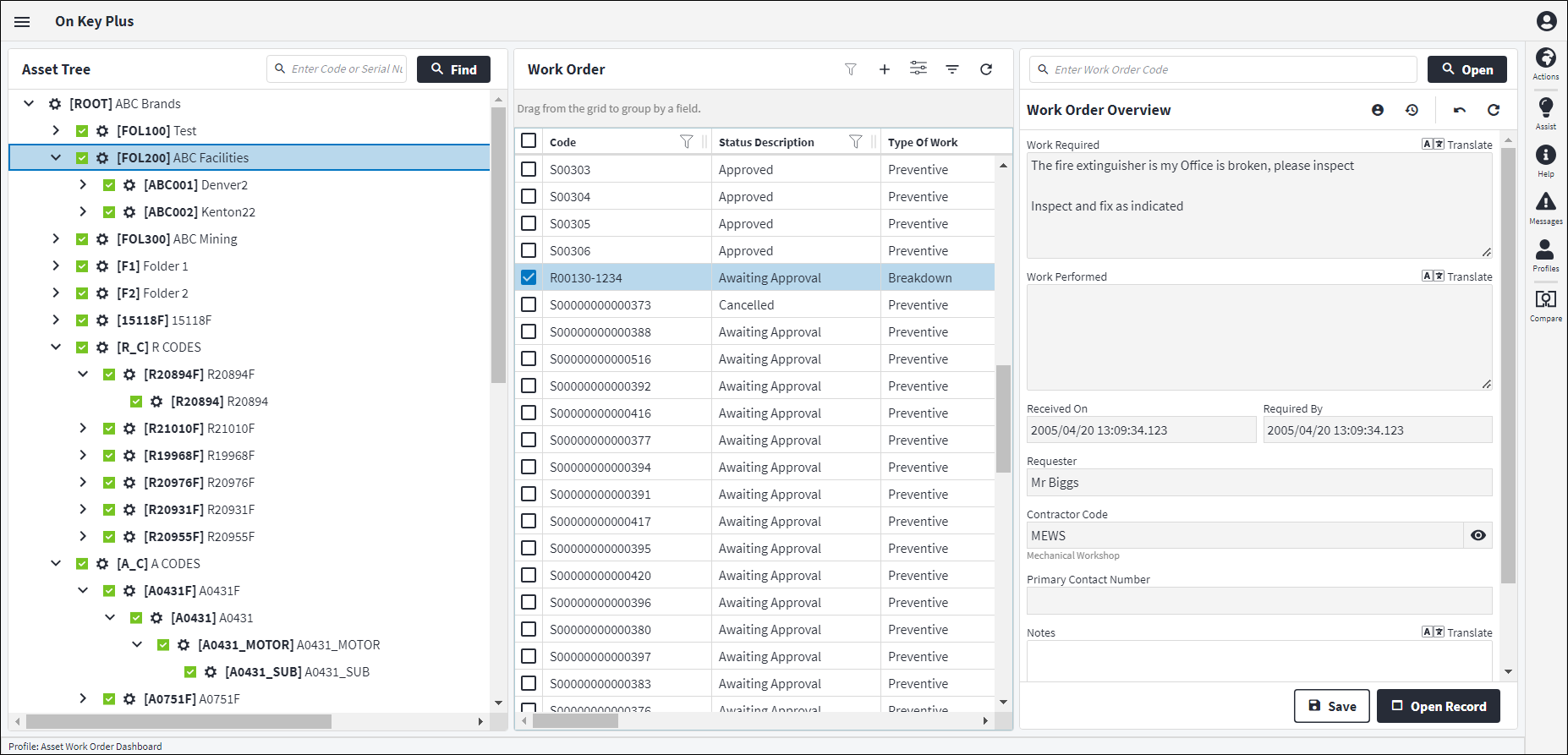
A profile is defined for the entire screen. Existing work order dashboard profiles can therefore not be used on this screen. Currently only the work order dashboard screen is configurable.
The asset work order screen is split into three sections:
Asset Tree
The asset tree section assists the call centre user to easily find an asset in question to see the work order(s) that have been logged against it and to create new work orders against this asset. Assets and components are displayed, no tasks. The components are displayed for reference purposes only. Component records can be double clicked to open the component edit screen, but components are not selectable in this asset tree view. The work orders displayed are that of the parent asset.
The asset tree section can be hidden if required.
Work Order
All work orders that have been created against an asset and it's children are displayed in a dashboard in the work order section when any asset is selected in the asset tree.
Example: When ABC Facilities is selected in the asset tree, all work orders against ABC Facilities, Denver2 and Kenton22 are displayed in the work order section.
The dashboard works like all other dashboards in On Key Plus. From the toolbar, the user has access to the Filter, Create, Properties Panel, Query Builder and Refresh functions. The Create function allows the user to add a new work order with the Asset Code field on the work order auto populated based on the asset selected in the asset tree.
The work order section can be expanded by hiding the asset tree section.
Work Order Overview
The work order overview section has a search bar at the top to search for an existing work order. The work order edit screen is opened when the user inserts a work order code and clicks on Open. Note that there are no changes to the asset tree, work order dashboard or work order overview sections.
The work order overview is a summary view of the work order selected on the work order dashboard. Only the Notes field is editable. Records can be edited clicking on the Open Record button at the bottom of the screen. This will open the work order edit screen.
From the toolbar, the user has access to Contact Details, Changelog, Undo and Refresh functions. The Contact Details button displays a grid of all staff member resources. Staff member records can be opened to display contact information. The Changelog button displays a detailed changelog of the work order.
Assist custom actions
The following custom actions are available in the Assist panel in the sidebar:
- Set Work Order Status: Refer to Change Work Order Status.
- Cross References: Refer to Perform Cross Reference.
- Launch Report: Launch the default report for this entity in a new tab. Refer to Report Server Entity Screen.
- Launch Default Report(s): Launch the fallback report(s) for this entity in a new tab. Refer to Report Server Entity Screen.
- View Changelog: Refer to View Changelog.