Work Order Progress Log Screen
For each work order progress event that is recorded, an entry is created in the work order progress log. This can be viewed on the following tab(s) of the edit screen: Overview. Below is a list of descriptions for the fields in the sections on each tab.
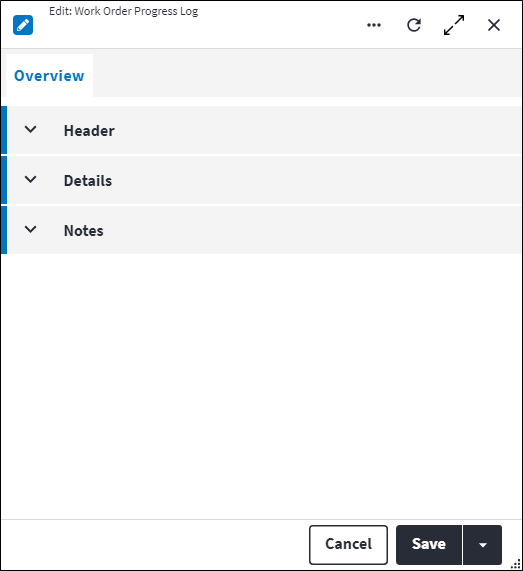
Overview
The Overview tab contains the following section(s):Header
- Work Order: The work order against which this progress event has occurred.
- Progress Event: The unique work order progress event.
- Permission Tree: A field linked to a permission record in a permission tree, that determines whether a user has rights to access records and/or make changes to records. This is assigned by the system where possible.
Details
- Created By: The full name of the user that actioned the progress event.
- Executed On: The date and time on which the progress event was actioned.
- Created On: The date and time on which the progress event data was received and saved to the On Key Plus database. As FEA has offline capability, the Created On date could be later than the Executed On date.
- Work Order Status: If a work order status change took place as a result of this progress event, the status of the work order at the time of the event is recorded.
- Preconfigured Reason: The preconfigured
Work Order Progress Logreason. Refer to Preconfigured Reason Screen for more information. Preconfigured Reason or Free Text Reason is required if the work order progress event Reason Required is set to true. - Free Text Reason: A free text reason field. Preconfigured Reason or Free Text Reason is required if the work order progress event Reason Required is set to true.
Notes
Add additional details, comments or other relevant information.Assist custom actions
The following custom actions are available in the Assist panel in the sidebar. Keep in mind that some of these custom actions are only available from the edit screen, while others are available from both the dashboard and edit screen.- Add to Compare: Refer to Add Items for Comparison.
- View Changelog: Refer to View Changelog.