Work Order Timeline Screen
The data displayed in the Work Order Timeline bars represents the work order date and time. The work orders are represented by work order cards that are displayed on the left of the timeline and displayed in each row. The toolbar uses the following additional functionalities that is unique to the work order timeline.
The toolbar contains icons and buttons that provide quick access to the available tools for the screen.
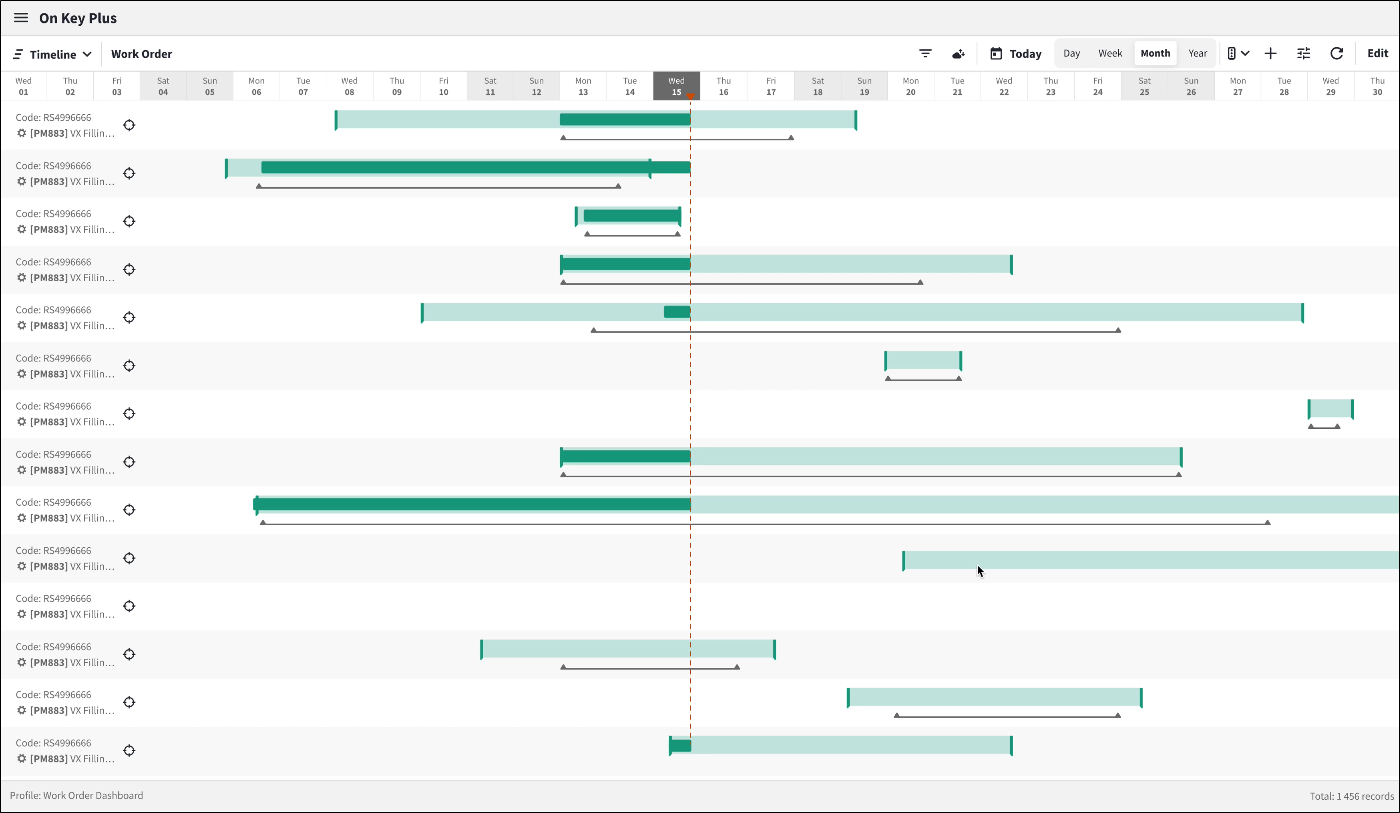
Refer to View Work Order Timeline Legend for more information.
Icons
These are the icons that is on the work order timeline toolbar in On Key.

| Use | To |
|---|---|
| Today | Today: Displays the day information. |
| Day | Day: Changes the timeline view to a day timeline including the hours. |
| Week | Week: Changes the view to a Week timeline. |
| Month | Month: Changes the view to a Month timeline. |
| Year | Year: Changes the view to a Year timeline. |

|
Create: Insert or add a new record. |

|
Properties Panel: Open the Properties Panel. |

|
Query Builder: Open the Query Builder. |

|
Data Summary: Show the Data Summary visualisation. |

|
Refresh: Refresh the data to include any changes that have been made. |

|
Prepared query: To fetch the date. |
| Edit | Edit: Allows you to edit the selected work order by showing the edit screen. |
Timeline Views
There are four selectable timeline views via the controls namely, the Day, the Week, the Month and the Year view. The calendar bar will display based on the selection you made.
- Day View: This is the default calendar bar display and will be today, and the current hour will be indicated by the time line.
- Week View: The calendar bar displays days of the selected week including the date, from Sunday to Saturday.
- Month View: In this view the calendar bar displays the days of a standard calendar month, with dates starting on the 1st to last day of the month.
- Year View: In this view the calendar bar displays months of the year starting from January to December.
Work Order Cards
Work Orders are represented by work order cards on the timeline. These work orders are arranged from the oldest to the newest which is determined by the created on date.
Work Order Card details will contain the following information:
- work order code
- timeline locator
- asset code and description.
You will have the option to add or remove card details via the properties panel, which can be accessed in the toolbar under work order card properties on the properties panel source fields.
Selected
- Work Order Asset: Displays the work order asset code and asset description on the work order card.
Available
- Work Order Status: Displays the work order user defined status.
- Work Order Site: Display work order site code and description to the work order card.
Work Order Dates represented by timeline bars
Work order dates are displayed and represented by the horizontal timeline bars. These timeline bars are based on where the calendar represents the hour, day and month is included in the work order date and time. When the work order date and time falls before or after the selected timeline view, then a work order card is available in the relevant row.
When hovering on the timeline bar it displays the work order date and time with durations.
To navigate to the where timeline bars can be seen the following options are available:
Received On & Required By
- Received On: The calendar date and time when the request was recorded.
- Required By: The calendar date and time when the work is required.
Start On & Complete By
- Start On: The planned date for the work to start on. This can not be after the Complete By date.
- Complete By: The planned date for the work to be complete.
Started On & Completed On
- Started On: The actual time the work was started.
- Completed On: The date on which the work was completed.
Overdue By
- A visual indication on timeline bars when the work order has not been done by the expected date. Also indicates the number of days.
- When the Required By date and time is greater than the current time and the Completed On date is empty.
- When the Completed On date and time is greater than the Required By date and time.
Work Order Dates represented by timeline bar layers
Work order dates are displayed and represented by the horizontal timeline bar layers. These timeline bars are based on where the calendar represents the hour, day and month is included in the work order date and time. When the work order date and time falls before or after the selected timeline view, then a work order card is available in the relevant row.
To navigate to the where timeline bars can be seen the following options are available:
- Received On & Required By: This is indicated by the light green timeline and can be added or removed.
- Start On & Complete By: This is indicated by the dark grey bar, and can be added or removed. This is the thin bar below the received on and required by bar.
- Started On & Completed On: This is dark green bar and can be added or removed. When added this will appear on top of the received on and required by date bar.
- Overdue By: This is indicated by a red bar and can be added or removed. When added this will appear on all the work order cards timeline that has not been completed.
Refer to View Work Order Timeline Legend for more information
Timeline bar context menu
When you right-click on the timeline bar of the work order row, this gets highlighted and display a unique context menu with the following options:
- Open in New Tab: This will open the selected work order in a new tab.
- Open Edit Screen: This will open the selected work order’s edit screen.
- Change Date & Time: This will allow you to change the selected work order’s date and time. When selected an edit dialog with the work order dates will appear, changing the date or time will adjust the bar width when you refresh.
- Add to Compare: This options adds the selected work order to compare.
Assist custom actions
The following custom actions are available in the Assist panel in the sidebar:
- Cross References: Refer to Perform Cross References.
- Launch Report: Launch the default report for this entity in a new tab. Refer to Report Server Entity Screen.
- Launch Default Report(s): Launch the fallback report(s) for this entity in a new tab. Refer to Report Server Entity Screen.