Conditional Formatting Examples
Below are some examples of the application of conditional formatting to a grid in On Key. Refer to On Key Query Language Expressions for the syntax that is used to build the conditional formatting rules.
Either the normal comparison operators (for example >, >=, <, <=, =, <>) or alternative comparison operators (for example gt, ge, lt, le, eq, ne) can be used to build expressions. Refer to On Key Query Language Comparison Operators for more information.
Example 1: Formatting a single field based on value
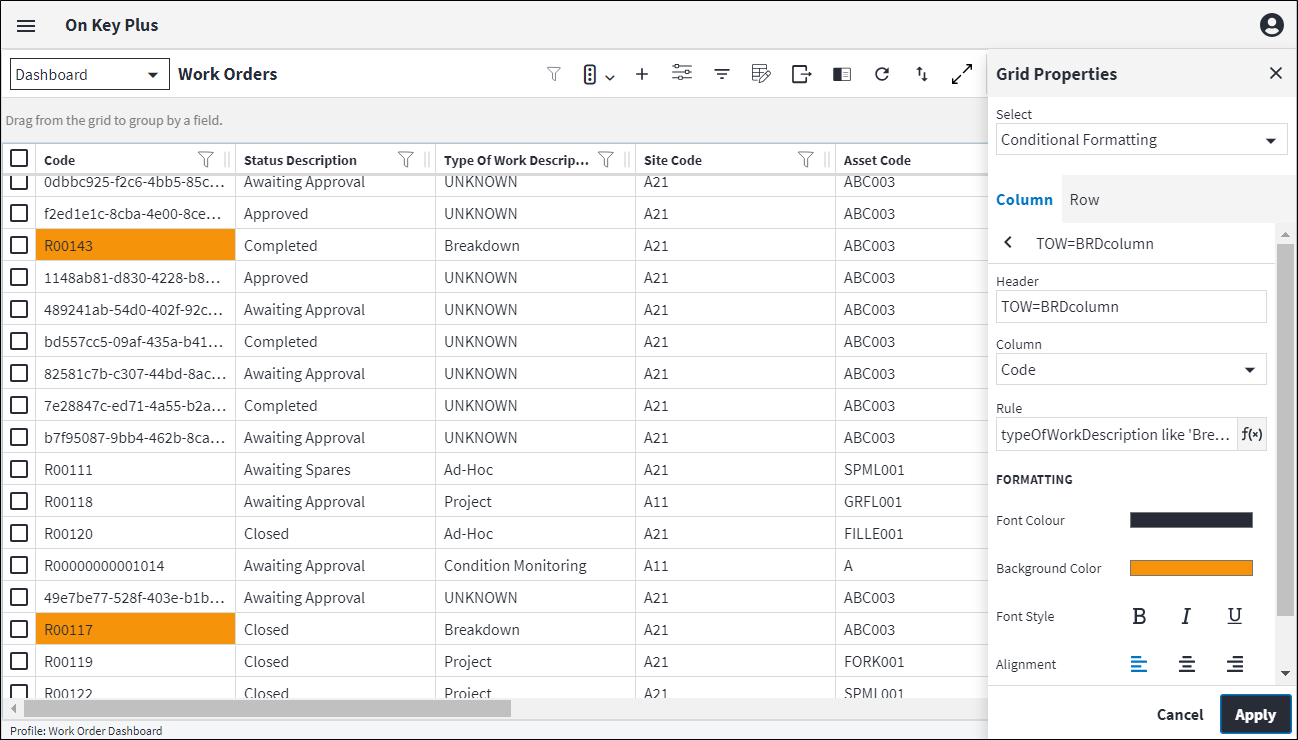
In this example the Work Order Code field is formatted for all work orders with Type of Work Description equal to breakdown.
Setup
Only the Work Order Code field needs to be formatted as opposed to the entire row, so the Column tab is selected.
Grid Properties inputs
| Field | Value |
|---|---|
| Column | Code
|
| Rule | typeOfWorkDescription like 'Breakdown'
|
Select the required formatting and click Apply.
Result
Example 2: Formatting an entire row based on value
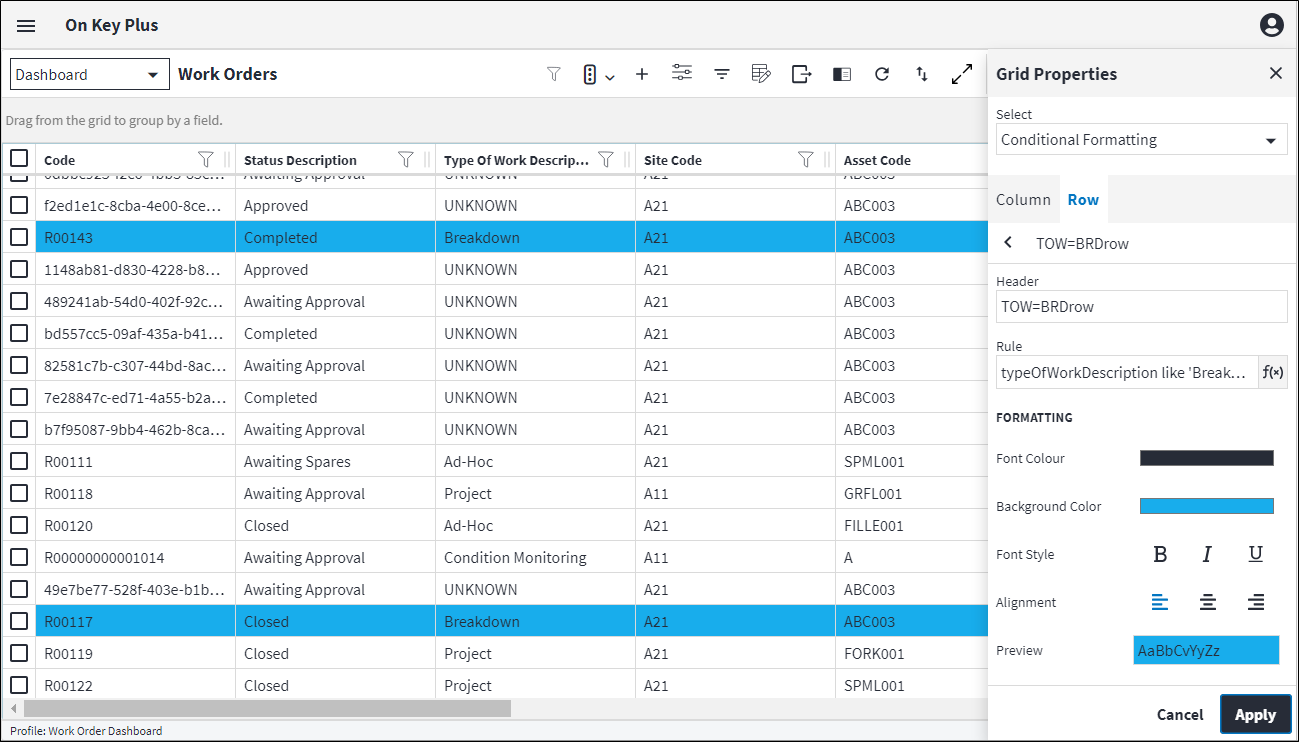
In this example the entire row is formatted for work orders with Type of Work Description equal to breakdown.
Setup
The entire row needs to be formatted as opposed to only the field, so the Row tab is selected.
Grid Properties inputs
| Field | Value |
|---|---|
| Rule | typeOfWorkDescription like 'Breakdown'
|
Select the required formatting and click Apply.
Result
Example 3: Applying multiple row formatting rules
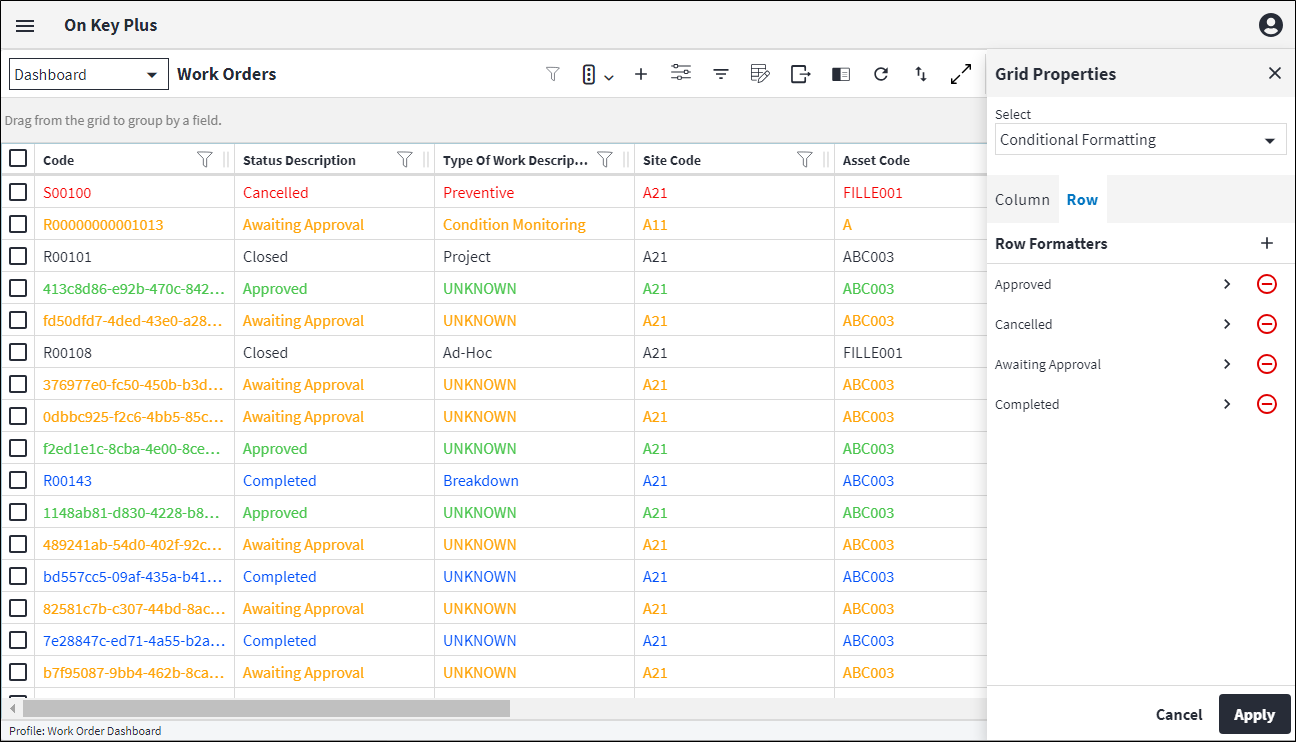
In this example multiple row formatters are set up based on the Status Description of the work order.
Setup
Entire rows need to be formatted as opposed to only the fields, so the Row tab is selected.
Grid Properties inputs
| Field | Value |
|---|---|
| Rule field for Approved rule | statusDescription like 'Approved'
|
| Rule field for Cancelled rule | statusDescription like 'Cancelled'
|
| Rule field for Awaiting Approval rule | statusDescription like 'Awaiting Approval'
|
| Rule field for Completed rule | statusDescription like 'Completed'
|
Select the required formatting for each rule and click Apply.
Result
- In the examples above, the rule operator eq (equal to) could also have been used.
- When applying formatting based on a field value, single quotation marks (') need to be used before and after the field value when building the rule. Double quotation marks (") will result in an error.
Example 4: Formatting a single field based on current date
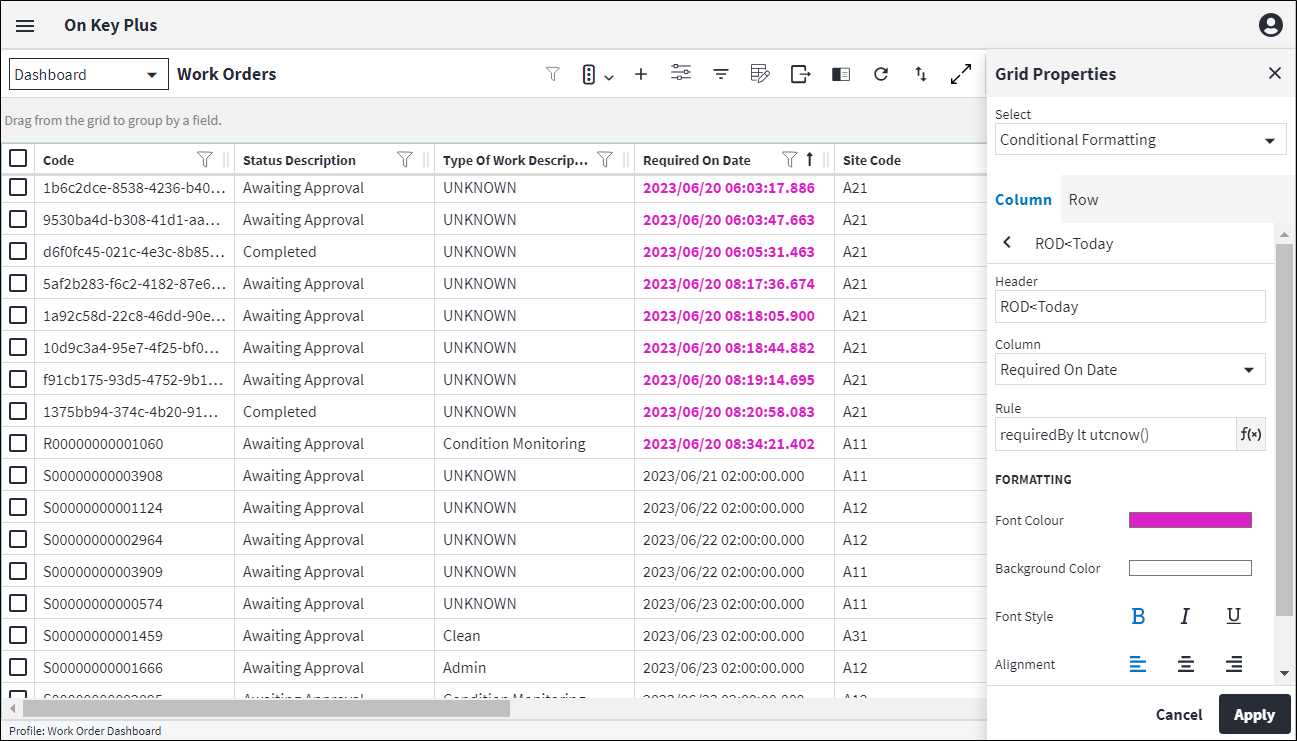
In this example, the Required On Date field is formatted for all records with Required On Date in the past.
Setup
Only the Required On Date field needs to be formatted as opposed to the entire row, so the Column tab is selected.
Grid Properties inputs
| Field | Value |
|---|---|
| Column | Required On Date
|
| Rule | requiredBy lt utcnow()
|
Select the required formatting and click Apply.
- This example was generated on 20/06/2023 at 11:30.
- The
utcnow()function specifies the current date.
Result
Example 5: Formatting an entire row based on a rolling window
In this example the entire row is formatted for work orders that were due in the last 14 days, but are not marked as complete.
Setup
The entire row needs to be formatted as opposed to only the field, so the Row tab is selected.
Grid Properties inputs
| Field | Value |
|---|---|
| Rule | requiredBy gt utcnow(timespan'-14.0:0:0') and requiredBy lt utcnow() and statusDescription ne 'Completed'
|
Select the required formatting and click Apply.
Result
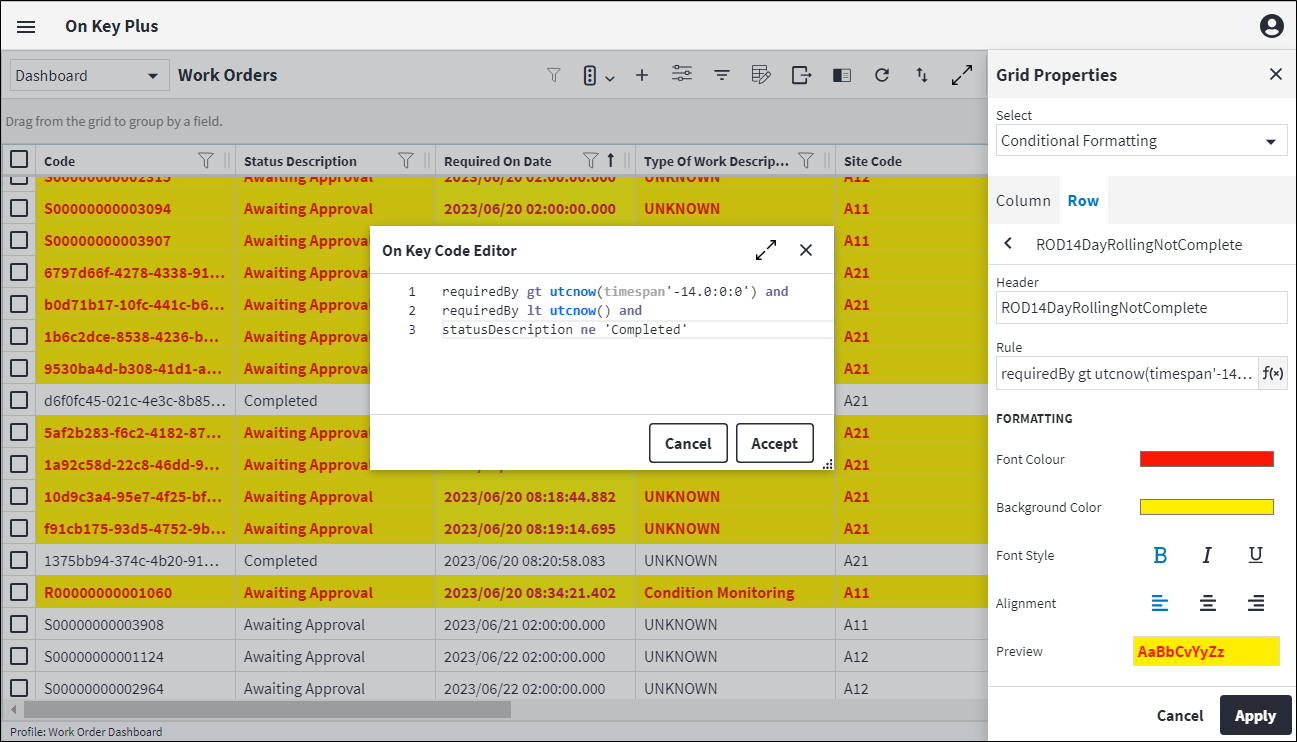
- This example was generated on 20/06/2023 at 12:45.
- The
utcnow()function specifies the current date. - The current date is offset by adding
timespan'day.hours:minutes:seconds'to theutcnow()function:utcnow(timespan'day.hours:minutes:seconds').
Example 6: Formatting a single field based on field value that has various formats
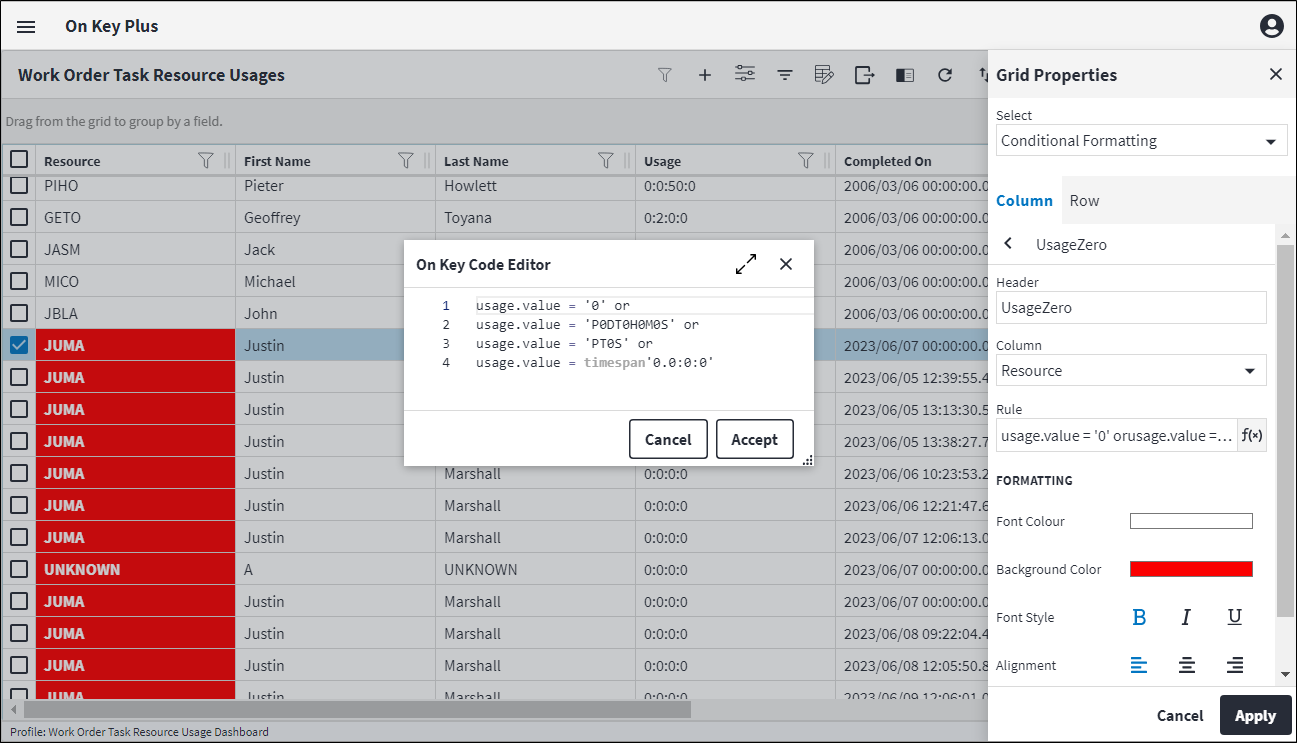
In this example the Resource field is formatted for work order task resource usages where the usage is zero. As the Usage field can have different units of measurement based on what is being measured, various rules need to be applied to cover all scenarios.
Setup
Only the Resource field needs to be formatted as opposed to the entire row, so the Column tab is selected.
Grid Properties inputs
| Field | Value |
|---|---|
| Column | Resource
|
| Rule | usage.value = '0' or usage.value = 'P0DT0H0M0S' or usage.value = 'PT0S' or usage.value = timespan'0.0:0:0'
|
Select the required formatting and click Apply.
Result