My User Screen
Data is captured on the following tab(s) of the edit screen: Overview. Below is a list of descriptions for the fields in the sections on each tab.
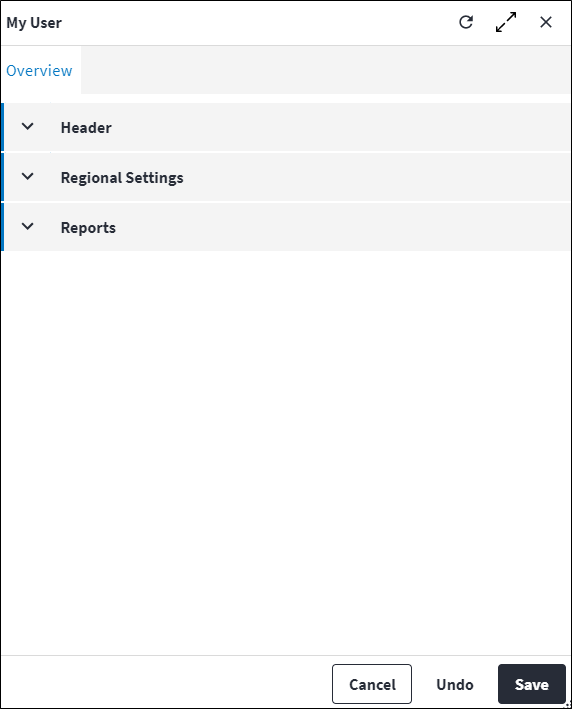
Overview
The Overview tab contains the following section(s):Header
- Full Name: A unique full name that identifies the user, which includes the user's first name and last name.
- Primary Email: The user's primary email address.
- Operational Role Rule: This governs what profiles a user has access to. The Operational Role Rule can be:
Strict, in which case the user will only be able to see profiles linked to their operational role. The user cannot create profiles and will not have access to system profiles, other operational role profiles, public profiles (that are not linked to the user's operational roles) or other users' personal profiles. These users are not allowed to change the defaults that are assigned to them.Limited, in which case the user will only be restricted for certain screens. If there's a profile assigned for a screen, then only those profiles can be used for that specific screen. On other screens, the user will have access similar to theOpenrules for system profiles, all public profiles and all operational role profiles. The user can have the permission to create their own profiles or not but will only be able to create profiles for non-restricted screens.Open, in which case the user will have no restrictions and be able to see all groupings.
Default Save Action
- System Default Create Save Action: The default save action for all create screens specified in system options. Refer to system options Default Save Action for more information.
- Default Create Save Action: Specifies the user's default save action on all create screens. If the Default Create Save Action configured on the system options screen differs from the selection made here, the User selection takes preference. If
Noneis selected here, the selection made in system options applies.
Possible values are:None(default)Save and CloseSave and NewSave and Update.
- System Default Update Save Action: The default save action for all edit screens specified in system options. Refer to system options Default Save Action for more information.
- Default Update Save Action: Specifies the user's default save action on all edit screens. If the Default Update Save Action configured on the system options screen differs from the selection made here, the User selection takes preference. If
Noneis selected here, the selection made in system options applies.
Possible values are:None(default)SaveSave and Close.
Regional Settings
- Content Translate: Indicates whether translations are enabled. This is read-only and displays the system setting that On Key is currently using. This can be changed from the Content Translations toggle switch in the account information.
- System Date Separator: This is read-only and displays the system setting that On Key Plusis currently using.
- Date Separator: Define how the values in dates are separated in On Key Plus. For example, the values can be separated by a slash (/) or a dot (.). Possible options are:
NoneSlashDot.
- System Date Format: This is read-only and displays the system setting that On Key is currently using.
- Date Format: Define the format in which dates are displayed in On Key. The following date formats are available:
NoneYYYYMMDDYYYYDDMMDDMMYYYYMMDDYYYY.
- System Time Format: This is read-only and displays the system setting that On Key is currently using.
- Time Format: Define the format in which time will be displayed in On Key. Possible options are:
NoneClock24hClock12h.
- System Default Language: This is read-only and displays the system setting that On Key is currently using.
- Default Language: Define the language in which On Key will be displayed when the user logs in.
- Is Report User: If ticked, this indicates that this user is a report user. If not ticked, then this user is not a report user.
- Report User Name: Once Is Report User is enabled and the Report User Roles are allocated, then the user is created in Wyn's reports portal and the Report User Name will be returned.
- Report User Roles: The Wyn report roles that determine what the user can and cannot do in Wyn.
- Report Server UI Language: A language and region setting which specifies the language, and how the date and number formats are displayed on Wyn's user interface.
Report Server UI Language defaults to the value specified on the user entity. If it is not specified on the user, Report Server UI Language defaults to the value specified on the user's site, then to the system options setting. The Report Server UI Language value may be null. - Report Server Report Language: A language and region setting which specifies the language, and how the date and number formats are displayed in the report in Wyn.
Report Server Report Language defaults to the value specified on the user entity. If it is not specified on the user, Report Server Report Language defaults to the value specified on the user's site, then to the system options setting. The Report Server Report Language value may be null.