Monitoring Point Trigger Expression Screen
Data is captured on the following tab(s) of the edit screen: Overview, Parameters and Alarm Types. Below is a list of descriptions for the fields in the sections on each tab.
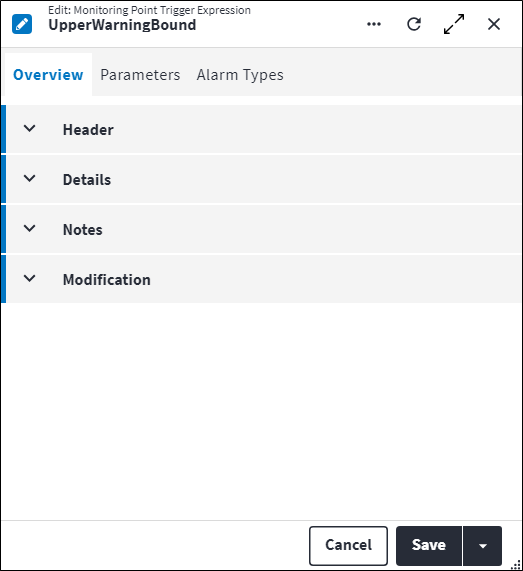
Overview
The Overview tab contains the following section(s):Header
- Monitoring Point Trigger: The monitoring point trigger for which this expression is specified.
- Description: A short description of the monitoring point trigger expression, for example
Value > 50%orUpper Critical Bound. - Permission Tree: A field linked to a permission record in a permission tree, that determines whether a user has rights to access records and/or make changes to records. This is assigned by the system where possible.
- Sequence Number: The sequence in which the records are listed. Use the Sequence Number to list the monitoring point trigger expressions in a logical sequence.
- Is Active: Ticked if the record is active and available in lookup lists.
- Is Valid: Ticked if the expression is valid. The expression is validated upon creation and again when any change is made to the expression details or linked monitoring point trigger expression parameters and alarm types.
If the expression is invalid (Is Valid is set to false), invalid reasons are displayed in the next field. - Invalid Reasons: If the expression is invalid (Is Valid is set to false), all invalid reasons are displayed here. Possible values are:
Alarm Type Type Of Work Not Specified: One or more of the linked alarm types have Auto Create Work Order set to true, but Default Work Order Type of Work is not specified for the alarm type.Incorrect Parameter Data Type: One or more of the defined monitoring point trigger expression parameters have the incorrect Data Type value configured.Missing Parameters: One or more monitoring point trigger expression parameters have been used in the monitoring point trigger expression that have not been defined.No Active Alarm Types: At least one active alarm type needs to be configured for each monitoring point trigger expression.Not All Parameters Used: One or more monitoring point trigger expression parameters have been defined that have not been used in the monitoring point trigger expression.
Details
- Expression: A mathematical operation containing parameters. The expression is used by the monitoring point trigger to evaluate monitoring point readings. If the result of the expression is true, the trigger is actioned and the alarm is raised.
The expression can contain parameters which will then be defined on Parameters tab. Refer to Expressions for more information on the syntax used to build expressions.
Practical examples of monitoring point trigger expressions:Trigger Expression Upper critical bound monitoring_point_reading(@monitoringPoint) > @upperCriticalBoundUpper warning bound (monitoring_point_reading(@monitoringPointId) > @upperWarningBound) AND (monitoring_point_reading(@monitoringPointId) <= @upperCriticalBound)CPU critical temperature avg_monitoring_point_reading(@cpuSensorId, timespan'00:05:00') > @cpuAvgCriticalTemp - Asset: The asset against which an alarm is raised if a monitoring point reading exceeds the specified expression. All regular- and in-place MSI assets are available in the lookup function. The alarm will be based on the Alarm Type for the expression that failed. Consequently, a work order can either be generated automatically or not based on the configuration specified on the alarm type.
This is not a mandatory field. Where automatic monitoring is done with linked asset tasks in the trees, Asset should not be specified as the asset will be auto populated from where the expressions are linked in the tree. Where expressions are not linked in the tree, it could make sense to define the Asset against which the alarm should be raised for a specific failed expression. - Alarm Cancellation Type: Monitoring point trigger expressions can either be cancelled by die linked work order tasks or the linked alarm and its expression(s). This setting specifies which entity (if any) takes responsibility for the alarm. Possible values are:
Manual Cancel(default): No automatic status updates are taking place even if new monitoring point readings cause failed expressions to pass. The user needs to cancel alarms and work orders as required.Cancelled by Expression: The alarm takes responsibility for monitoring new monitoring point readings that enter the system. If a new monitoring point reading enters the system that causes the expression to pass again, the Status of the alarm expression is set toCancelled.Cancelled by Work Order: The created work order takes responsibility for the alarm. The linked work order tasks (that originated from the alarm expression tasks) that are set asCompletedat the time of closing the work order will cause the Status of the associated alarm expression tasks to be set toHandled.
Where the expression or the work order takes responsibility for the alarm (Cancelled by ExpressionandCancelled by Work Orderoptions above), the Status of the alarm expression is automatically updated based on the Status of the alarm expression tasks linked to it:
| Once the Status of all the alarm expression tasks linked to an alarm expression is set to: | ...the Status of the alarm expression is automatically set to: |
|---|---|
Handled | Handled |
Handled or Cancelled (a combination) | Handled |
Cancelled | Cancelled |
Similarly, once the Status of all the alarm expressions linked to an alarm is set to either
Handled, or Cancelled, or a combination of Handled and Cancelled, the Status of the alarm is set to Closed by System.Note that if the Status of any of the alarm expression tasks linked to an alarm expression is
Active, the Status of the linked alarm expression will also be Active.- Always Record Result: Choose whether the system should be checking and executing monitoring point expressions (linked to alarms) or if the expressions for new monitoring point readings can be ignored. Possible values are:
False(default)True: The system will always execute the expression, even if Alarm Cancellation is set toManual Cancel. This will allow integrations to read the results and react.
Notes
Add additional details, comments or other relevant information.Modification
Displays details of when the record was created and last updated. This section is autopopulated and requires no user input.Monitoring Point Trigger Expression Parameters
The parameters on a monitoring point trigger expression defines the expression and is used to formulate the expression.
Click  in the toolbar to add parameters to a monitoring point trigger expression. These fields are required:
- Parameter Name: Parameters on a monitoring point trigger expression are used to define and formulate the Expression. The Parameter Name identifies whether the parameter is a value or an ID.
- Parameter Type: Possible values are:
Monitoring PointStaticEntity.
- Entity Type: If the Parameter Type is
Entity, then this field is required. This specifies what entity the expression parameter is on. - Monitoring Point Type: The monitoring point type used for the monitoring point, for example
TEMP. Select a Monitoring Point Type Code from the lookup list. If the Parameter Type value isMonitoring Point, then this field is required. - Monitoring Point: A unique code to identify the monitoring point. This is optional when the Parameter Type on the Parameter is set to
Monitoring Pointand the value can be cleared or updated as required. When the Parameter Type on the Parameter is not set toMonitoring Point, this field is read-only. - Data Type: Defines the data type of the parameter.
- If the Parameter Type value is
Monitoring Point, this field is not applicable. - If the Parameter Type value is
Static, the following values can be selected:Boolean– used to capture true or false values.Currency– used to capture monetary values that will be used for financial calculations.Date– used to capture year, month and day values.Date Time– used to capture date and time information.Duration– used to capture information about a period of time.Email– used to capture email addresses.Float– used to capture decimal numbers.Integer– used to capture whole numbers.Long– used to capture a range of values wider than those provided byInteger.String– used to capture a sequence of alpha-numeric characters.Time– used to capture hour, minute and second values.
- If the Parameter Type value is
Entity, Data Type defaults toLong.
- If the Parameter Type value is
- Value: Parameter value based on selected Parameter Type.
- If the Parameter Type value is
Monitoring Point, the Value field will be null. - If the Parameter Type value is
StaticorEntity, the Value field becomes an editable dynamic value.
- If the Parameter Type value is
- Permission Tree: A field linked to a permission record in a permission tree, that determines whether a user has rights to access records and/or make changes to records. This is assigned by the system where possible.
Monitoring Point Trigger Expression Alarm Types
Alarm types determine the actions required when the monitoring point trigger is activated and an alarm is raised.
Click in the toolbar to link alarm types to a monitoring point trigger expression. The following fields are required:
- Alarm Type: A unique code used to identify the alarm type.
- Permission Tree: A field linked to a permission record in a permission tree, that determines whether a user has rights to access records and/or make changes to records. This is assigned by the system where possible.
Assist custom actions
The following custom actions are available in the Assist panel in the sidebar. Keep in mind that some of these custom actions are only available from the edit screen, while others are available from both the dashboard and edit screen.- Set Active / Set Inactive: Refer to Set Items to Active or Inactive.
- Add to Compare: Refer to Add Items for Comparison.
- Change Permission Tree: Refer to Change Permission Tree.
- Cross References: Refer to Perform Cross Reference.
- View Changelog: Refer to View Changelog.