Expressions
Expressions form part of the On Key query language and are used to support different features. Expressions can be used:
- to filter data based on predefined rules;
- to set up conditional formatting rules;
- within rules applied to the asset register to support the creation of dynamic maintenance plans;
- within mathematical operations to evaluate specific data values for the purpose of defining suitable resultant actions.
Expressions can contain parameters. Refer to On Key Query Language Expressions for the syntax that is used to build the expressions.
Expression functionality is available on the following entities:
- Alarms
- Approvals
- Approval workflows
- Budgets
- Budget templates
- Change data trigger criteria
- Default reports
- Monitoring point triggers
- Regular asset monitoring point trigger parameters
- Regular asset type task follow up tasks
- Regular asset task follow up tasks
- Service level agreements
- System option report server entities
Refer to each of the entity pages listed above for practical examples on how to use the relevant expressions.
Keep in mind
- Either the normal comparison operators (for example
>,>=,<,<=,=,<>) or alternative comparison operators (for examplegt,ge,lt,le,eq,ne) can be used to build expressions. Refer to On Key Query Language Comparison Operators for more information. - Single quotation marks (
' ') should be used when configuring conditional formatting expressions or when configuring filter expressions using the text view of the query builder, for example:developmentStatus = 'Confirmed'Costing->CostCentre_Code eq '1116'WorkOrder->Site_Code startswith 'A2'WorkOrder->Origin in ('Manual','FollowUp','Alarm')
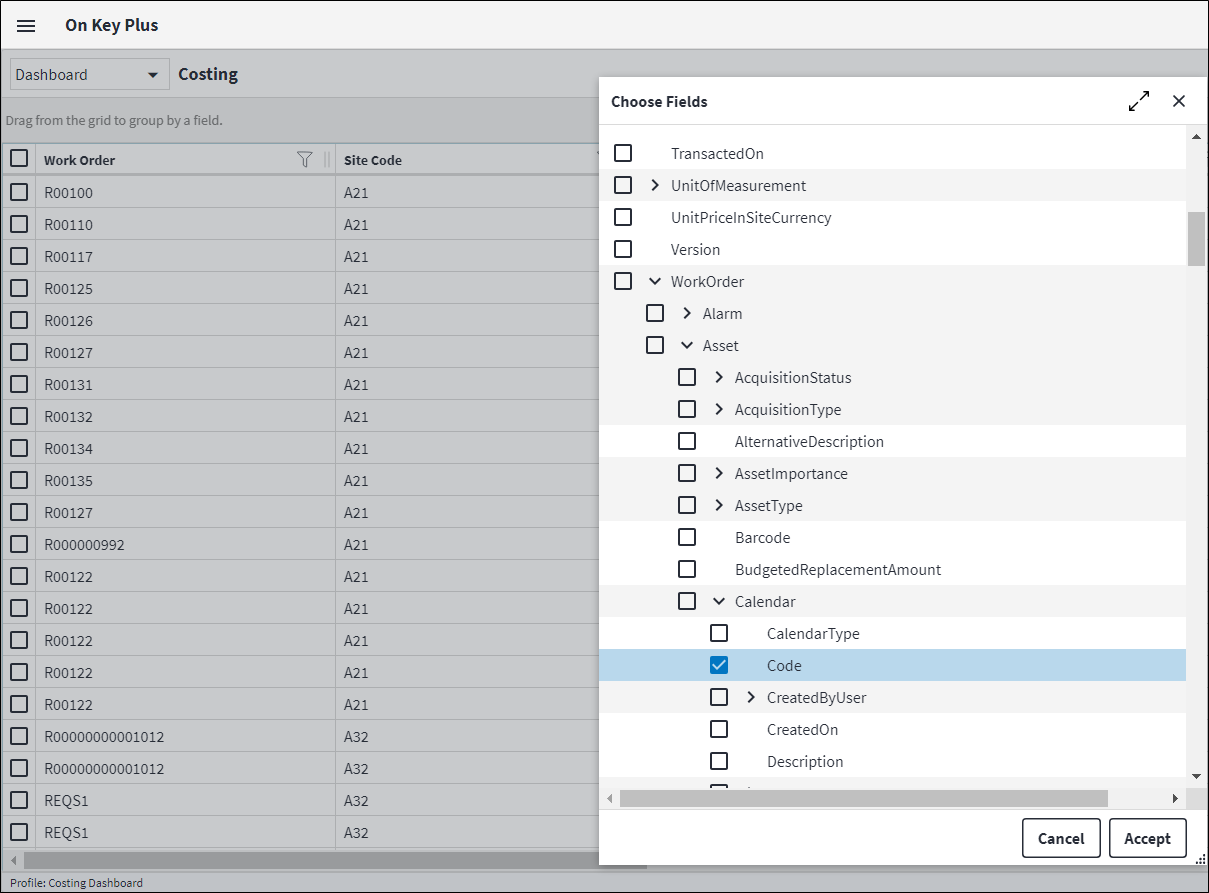
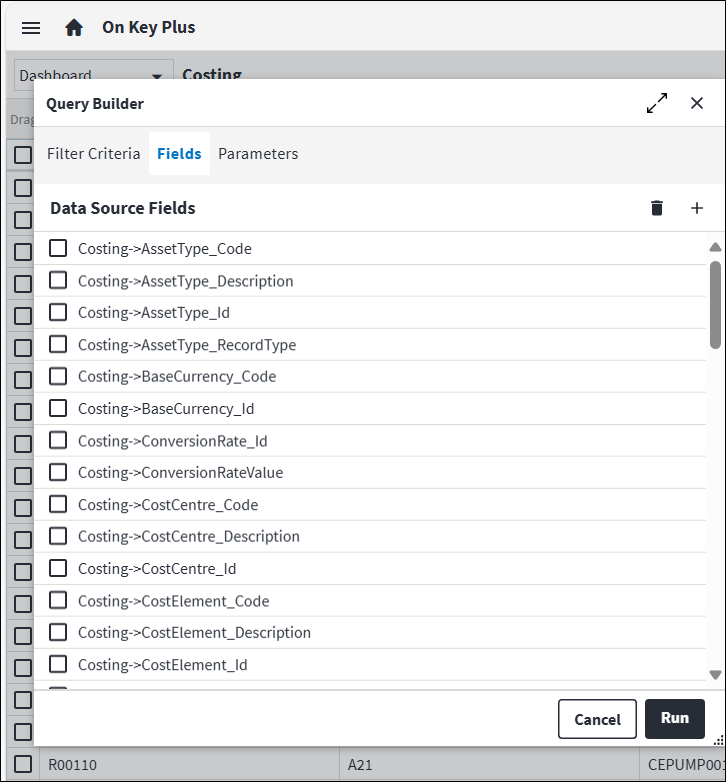
" "). - The query builder for the specific entity can be used to view a complete list of the available field relationships that can be used to build expressions. The specific field reference can be found by clicking on the Add Field button on the Fields tab.
For example if the calendar code of the work order asset is required to build an expression, the field is selected and once Accept is clicked, the property path syntax is displayed on the Data Source Fields list. In this example, the property path syntax is Costing->WorkOrder_Asset_Calendar_Code.