User Defined Field Screen
Data is captured on the following tab(s) of the edit screen: Overview and Predefined Values. Below is a list of descriptions for the fields in the sections on each tab.
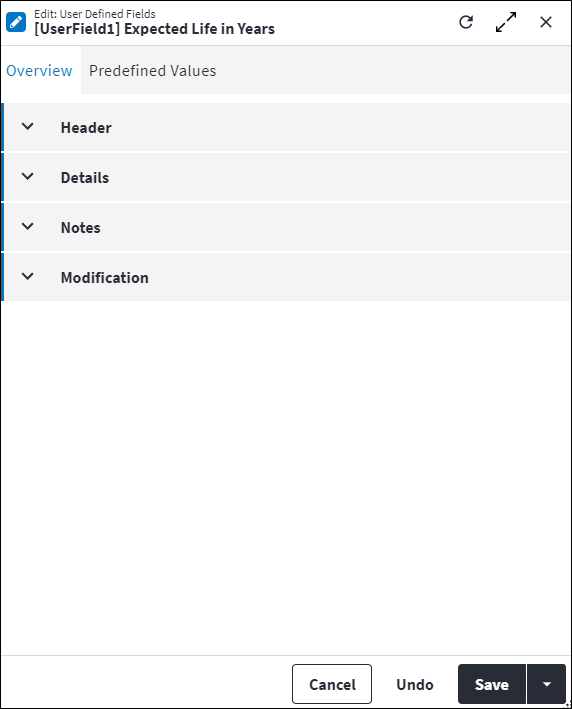
Overview
The Overview tab contains the following section(s):Header
- Entity: The type of item for which user defined fields are defined.
- Name: The name of the user defined field that uniquely identifies the field.
- Description: A short description of the user defined field.
- Permission Tree: A field linked to a permission record in a permission tree, that determines whether a user has rights to access records and/or make changes to records. This is assigned by the system where possible.
- Sequence Number: Defines in which sequence the user defined fields will be displayed on the record. If no Sequence Number is defined, then the user defined fields will display in the same order that they were added to On Key.
- Is Active: Ticked if the record is active and available in lookup lists.
Details
- Data Type: Defines the data type of the user defined field. Possible values are:
Boolean: Used to capture true or false values.Currency: Used to capture monetary values that will be used for financial calculations.Date: Used to capture year, month and day values.Date Time: Used to capture date and time information.Duration: Used to capture information about a period of time.Email: Used to capture email addresses.Float: Used to capture decimal numbers.Integer: Used to capture whole numbers.Long: Used to capture a range of values wider than those provided byInteger.String: Used to capture a sequence of alpha-numeric characters.Time: Used to capture hour, minute and second values.
- Is Memo: Allows you to insert line breaks in your feedback on a user defined field by pressing Enter. This is only editable for Data Type
String. - Length: This is only editable for Data Type
Stringand read-only if any other Data Type option is selected. It specifies the maximum character length forStringvalues. If no character limit is set forStringvalues (ie no Length is specified), any amount of characters can be inserted into the user defined field. If the Length is changed, then it will be applied from that point onwards. - Field Type: Specifies whether the user can enter a custom value that is not in the predefined list of values.
Possible values are:Allow Any ValuePredefined ValueBoth.
- Default Value: Specifies a default value for the user defined field. The user defined field will be populated with this value automatically when the relevant business object, ie work order, asset, or staff member, is created. If the Field Type is
Allow Any ValueorBoth, the user can insert any value of the same Data Type as selected for the entity. This field is read-only if the Field Type isPredefined Valueand is cleared once the Default Predefined Value is populated. - Default Predefined Value: Specify a default predefined value from the lookup of all the predefined values on this user defined field. If the Field Type is
Predefined ValueorBoth, the user can look up predefined values. If the Field Type isAllow Any Value, then this field is read-only. This field is cleared once the Default Value is populated. - Enable Match Update: Specify whether the user should be able to perform match updates on this specific user defined field. If set to true, the user defined field will be part of the selectable fields when performing a match update. Refer to Match Update for more information.
Notes
Add additional details, comments or other relevant information.Modification
Displays details of when the record was created and last updated. This section is autopopulated and requires no user input.Predefined Values
Predefined values can be specified for a user defined field.
Click  in the toolbar to add predefined values directly to the user defined field. The following information is captured:
- Value: A predefined value for the user defined field. The Value must be unique and be of the same Data Type as the parent user defined field. If the Data Type is
String, then the Value should be less than or equal to the maximum Length defined on the parent user defined field. - Description: The name of the predefined value.
- Sequence Number: The sequence in which the records are listed. Use the sequence number to list the records in a logical order.
- Is Active: Ticked if the record is active and available in lookup lists.
- Notes: Add additional details, comments or other relevant information.
Assist custom actions
The following custom actions are available in the Assist panel in the sidebar. Keep in mind that some of these custom actions are only available from the edit screen, while others are available from both the dashboard and edit screen.- Set Active / Set Inactive: Refer to Set Items to Active or Inactive.
- Add to Compare: Refer to Add Items for Comparison.
- Cross References: Refer to Perform Cross Reference.
- View Changelog: Refer to View Changelog.