Work Order Status Screen
Data is captured on the following tab(s) of the edit screen: Overview, Allowed Changes, Attributes and Documents. Below is a list of descriptions for the fields in the sections on each tab.
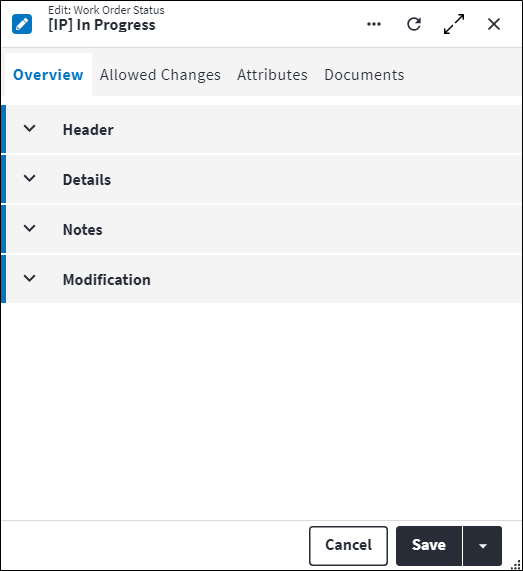
Overview
The Overview tab contains the following section(s):Header
- Code: A unique code used to identify the work order status, for example
AA. - Description: A short description for the work order status, for example
Awaiting Approval. - Permission Tree: A field linked to a permission record in a permission tree, that determines whether a user has rights to access records and/or make changes to records. This is assigned by the system where possible.
- Sequence Number: The sequence in which the records are listed. Use the sequence number to list the records in a logical order.
- Is Active: Ticked if the record is active and available in lookup lists.
Details
- Base Status: Defines the high-level milestones in a work order's life cycle. Select one of the following predefined base statuses:
Awaiting ApprovalApprovedCompletedClosedCancelled.
- Status Classification: Use the work order status classification to group work order statuses for reporting purposes. This optional grouping mechanism allows the customisation of work order statuses without needing to rewrite standard reports. The allowed values are filtered according to the Classification Type with value
Work Order Status. Refer to the Classification Screen for more information. - Apply Status Restrictions: Select the checkbox to restrict the statuses that are allowed to follow on from this status. The statuses will be limited to the allowed changes defined for specific work order statuses. Note that this is not globally applied, but applied per user. Apply Work Order Status Rules needs to be enabled on the specific users. Refer to User Screen for more information.
Notes
Add additional details, comments or other relevant information.Modification
Displays details of when the record was created and last updated. This section is autopopulated and requires no user input.Work Order Status Allowed Changes
If Apply Status Restrictions is active on the work order status, the statuses that are allowed to follow on from the current status is restricted. The statuses will be limited to the allowed changes defined for specific work order statuses.
The following information is displayed when linking allowed changes to a work order status:
- Work Order Allowed Status Code: A unique code used to identify the work order status allowed change. Select a Work Order Allowed Status Code from the lookup list.
- Work Order Allowed Status Description: A description for the work order status allowed change.
- Is Active: Ticked if the record is active and available in lookup lists.
Work Order Status Attributes
Attributes are used to describe the specific features, properties or characteristics of entities. An attribute is configured once and then reused across multiple entities.
A linked attribute can be inherited. When items are synced the linked attribute will be inherited, also as a linked attribute. So, if linked to an asset type, for example, then the asset will inherit the linked attribute.
Attributes can be added from the Attributes tab on the entity edit screen or from the entity Attributes dashboard.
The grid displays the attributes that have already been linked. Click  in the toolbar to create a new linked attribute or click
  to link an existing attribute.
The following information is displayed for linked attributes:
- Code: A unique code that identifies the attribute, for example
MODorCOL. - Description: A short description of the attribute, for example
ModelorColour. - Predefined Value: An allowed value for the attribute, which was inserted via the lookup list.
- Value: An allowed value for the attribute, which was entered via free-text.
- Predefined Value Description: A detailed explanation relating to the attribute allowed value.
Attributes added from the entity edit screen are also displayed in a consolidated list of linked attributes on the entity's Attributes dashboard.
Refer to Attributes for more information.
Work Order Status Documents
The purpose of the document linking functionality is to link a document record that has been added to the On Key document library to one or many entities. An example of this could be an instruction manual of how to repair an asset type. This instruction manual can be created as a document record and then linked to a specific asset type. Upon syncing, the instruction manual will be inherited to the child assets, asset components and asset component placeholders when set and linked.
Information regarding linked documents, including the file location, file name, file size and file type, is displayed. For work order documents and work order task documents, Is Copied Document Link also indicates whether the document link was copied from the relevant regular asset type task or regular asset task.
Refer to Document Linking for more information.
Assist custom actions
The following custom actions are available in the Assist panel in the sidebar. Keep in mind that some of these custom actions are only available from the edit screen, while others are available from both the dashboard and edit screen.- Set Active / Set Inactive: Refer to Set Items to Active or Inactive.
- Change Permission Tree: Refer to Change Permission Tree.
- Add to Compare: Refer to Add Items for Comparison.
- Cross References: Refer to Perform Cross Reference.
- View Changelog: Refer to View Changelog.