Work Order Service Level Agreement Measure Screen
Data is displayed on the following tabs of the preview screen: Overview. Below is a list of descriptions for the fields in the sections on each tab.
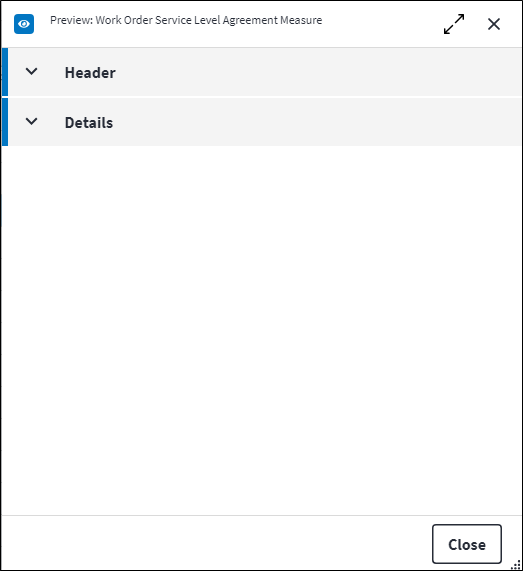
Overview
The Overview tab contains the following section(s):Header
- Work Order SLA: The relevant work order SLA.
- SLA Measure: The SLA measure that is linked to the specified work order SLA. The SLA measure cannot be a template SLA measure if it is linked to a work order SLA, so the Is Template value of the SLA measure needs to be false.
- Is Historical: Indicates whether this SLA measure still applies to this work order SLA. It is possible for the characteristics of a work order to change in such a way that the SLA measure no longer applies, for example when the work order Type of Work value changes.
If Is Historical is true on the linked work order SLA, Is Historical will be true for the SLA measure.
If Resettable Measure is set to true and the work order re-enters the Work Order Start Status after being out of status range, Is Historical on the previous work order SLA measure will be set to true and a new work order SLA measure will be created. Similarly, if Reset Measurement on Reassign Date is set to true on the SLA, and the work order is updated in such a way that the SLA no longer applies to the work order, only to be subsequently updated in such a way that the SLA applies to the work order once again, Is Historical will remain true for the linked SLA measures and new linked SLA measures will be created.
Details
- In Status Range: Indicates whether the SLA measure is currently in status range. This means that the work order Status value is within the specified Work Order Start Status and Work Order End Status (including both statuses). If the SLA measure is out of status range, the work order is in a status that is not related to the SLA measure. Only if In Status Range is true will triggers be activated for this work order SLA measure.
- Start Date: The first time the work order went into this status range, ie when the work order Status value first equalled the Work Order Start Status.
If the SLA was assigned to the work order after the work order went out of the Work Order End Status, the Start Date will be null as the SLA was not assigned to the work order at the time. - Completion Date: The date and time the work order exited the status range.
If the SLA was assigned to the work order after the work order went out of status range, the Completion Date will be null as the SLA was not assigned to the work order at the time. - Expected Completion Date: The estimated date on which the SLA measure should be completed based on the Duration and Calendar specified on the SLA measure.
- Duration Used: Indicates how much time elapsed from the moment the work order entered the Work Order Start Status until it excited the Work Order End Status, based on the Calendar configured.
- Duration Used Percentage: The work order SLA measure Duration Used value as a percentage of the SLA measure Duration value.
- Measure Reset Date: The date and time the work order re-entered the Work Order Start Status after being out of status range if Resettable Measure is set to true or Reset Measurement on Reassign Date is set to true on the SLA.
- Last Calculated On: The date and time the work order SLA measure was calculated. This gives an indication when the Force SLA Progress Calculation custom action needs be used.
- Error Status: The Duration Used Percentage value is only calculated up to
1 000 000%. If the value reaches this maximum, the work order service level agreement measure is no longer calculated. The reason is displayed here.
Error Status is not visible on the Work Order Service Level Agreement Measure edit screen by default, but can be added using the Screen Designer global preview function. It can also be added to the Work Order Service Level Agreement Measure dashboard via the Query Builder.
Refer to Service Level Agreement Screen and Service Level Agreement Measure Screen for more information.
Assist custom actions
The following custom actions are available in the Assist panel in the sidebar. Keep in mind that some of these custom actions are only available from the edit screen, while others are available from both the dashboard and edit screen.- Add to Compare: Refer to Add Items for Comparison.