Work Order Task Screen
Data is captured on the following tab(s) of the edit screen: Overview, Planning, Scheduling, Feedback, Notes, Resources, Spares, Sub Tasks, Task Movement, Follow Up Work Task Spares, Ac Hoc Costs, Requisition Items, Monitoring Points, File Attachments, Documents and Warranties. Below is a list of descriptions for the fields in the sections on each tab.
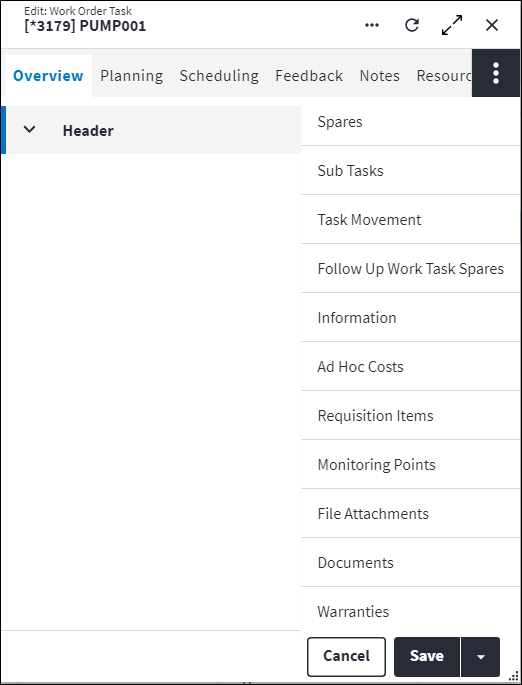
Overview
The Overview tab contains the following section(s):Header
- Work Order: A unique code that identifies the work order, which is assigned by the system. If the task is inserted on a work order, then this field defaults to that work order's Code.
The Work Order Code field is read-only in anAwaiting Approval,ApprovedandCompletedbase status when the task is inserted on the work order. - Task: If the work order has an asset, then this is a lookup of all the tasks available on the asset. If the work order doesn't have an asset, then this is a lookup of all asset tasks in this site. For a standard task, this is a lookup of all standard tasks.
The Asset Task Code field cannot be updated in anAwaiting Approval,ApprovedandCompletedbase status. - Alternative Description: The Alternative Description is inherited from the task on which the work order task is based.
- Asset: The asset on which the work is performed. This is autopopulated from the task selection.
- Component: The asset component on which the work order task is executed. This is autopopulated from the task selection.
- Warranty: Read-only indication of whether the asset or component (or linked asset or component) has a valid (or expired) and active (or inactive) linked warranty. Possible values are:
- Null (field is blank): The record has no linked warranties.
Expired: The record has at least one linked warranty, but all linked warranties are either expired and/or inactive.Non-strict: The record has at least one valid and active linked warranty that is set to non-strict (and by implication and no valid and active linked warranties that are set to strict).Strict: The record has at least one valid and active linked warranty that is set to strict. If there are also linked non-strict warranties that are valid and active, strict will take precedence.
- Task Type: This is used to differentiate between the following task types on a work order:
Regular Asset TaskRegular Asset Follow Up TaskStandard Task.
- Permission Tree: A field linked to a permission record in a permission tree, that determines whether a user has rights to access records and/or make changes to records. This is assigned by the system where possible.
- Sequence Number: Work order tasks are ordered by the Display Sequence field by default. Display Sequence is system generated based on a set of rules and cannot be changed by the user. It is typically the last column on the work order task dashboard. Refer to Display Sequence for more information.
Sequence Number can be used to specify the sequence in which the user would like the tasks to display in a list of tasks that have the same parent task, typically on the work order. Sequence Number is blank by default. - Enabled: Indicates whether the work order task (and work order task detail record) is enabled. This is set by the system.
- Disabled Reason: If Enabled is set to false, a reason is displayed for the work order task not being enabled. This is set by the system. Possible values are:
Deleted in Asset Register: The task has been deleted in the asset register. The work order task can never be enabled again.Follow Up Link Removed: The follow up task link has been deleted or deactivated in the asset register. The work order task could be enabled again if the follow up link is restored.Inspection Task Not Failed: The work order task is a follow up task and it's parent inspection task has not failed (Passed is not set to false on the inspection task). Once the inspection task fails, this follow up task will become enabled.Suppressed: The work order task is suppressed by another task on the same work order. The work order task could be enabled again due to the action of splitting a work order, deletion of a work order task or changing the asset register suppression.Task Not Initialised: The regular asset task has Is Initialised set to false. The work order task could be enabled again by initialising the task and aligning the work order. Refer to Is Initialised for more information.
Planning
The Planning tab contains the following section(s):Planning
- Mandatory: Ticked if the work order task must be executed before the work order is closed. This is autopopulated from the task.
- Inspection: Ticked if the asset component must be inspected and the work order task must be completed before the work order can be closed. A follow up task may be required for this work order task. Not ticked if an inspection is not required. This is autopopulated from the task.
- Inspection Type: Classifies the type of inspection task which can be one of the following options. This field is only editable when Is Inspection is set to true.
Automatic Monitoring: This is used when monitoring point readings are inserted into On Key Plus via another system. This option can only be selected when the First Interval Type Code is set toAd hoc. Manual Reading Required on the follow up task expressions will automatically be set to false. A user cannot manually add this task to a work order.Manual and Automatic Monitoring: This is used when readings are inserted either by means of a work order task (manual) or by a system, directly into the monitoring point readings table (automatic). Manual Reading Required on the follow up task expressions should be defined by the user.Manual Monitoring: This is used when monitoring point readings are manually inserted by a user on a work order task. Manual Reading Required on the follow up task expressions will automatically be set to true.Manual Reading Only: This is used when monitoring point readings are manually inserted by a user on a work order task. There is no follow up task logic linked to this inspection task. Monitoring points are defined for these tasks and are then used in the work order task.Pass or Fail: This is used when a simple pass or fail inspection task is required, without the need of inserting a monitoring point reading. These types of tasks can either pass or fail. When the task fails, the linked follow up tasks are activated.
Pass or Fail. The follow up tasks are either added to the same work or a new work order, depending on the configuration. - Failed Reason Required: Indicates whether providing a reason for a failed inspection is required. Only applies if the Inspection Type is
Pass or Fail.
This field is read-only on the work order task record and gets its value from the linked asset task record. - Inspection Work Order: This field only applies to work order follow up tasks, thus where an inspection failed on the original task and the follow up task was enabled. This is the parent work order of the work order containing the follow up task.
- Inspection Task: This field only applies to work order follow up tasks, thus where an inspection failed on the original task and the follow up task was enabled. This is the parent task where the original task failed that caused this follow up task to be created.
- Trigger When Upper/Lower Critical/Warning Exceeded: Ticked if a work order follow up task becomes enabled when this condition is met (monitoring point bound is exceeded) for the inspection task to which this follow up task is linked. This only applies to work order follow up tasks and is auto-populated from the asset task follow-up task setup
- Has Non-Usage Based Meter: If ticked, this setting allows meter readings to be captured for non usage-based tasks. This is autopopulated from the task.
- Meter: The meter that is attached to the asset. For regular asset tasks and follow up tasks, this is only required for usage-based tasks or if Has Non-Usage Based Meter is set to true. For standard tasks, this is not required and is read-only. This is autopopulated from the task and displays the meter's Code and Description.
- Priority: The work order task priority is an optional metric that enables the prioritisation of work. Priority is calculated using the custom action Calculate Priority available on the work order dashboard, work order recursive dashboard and work order edit screen, using the following formula:
Work order task Priority =
Work Order Importance Weight (configured in system options) x work order importance Weight +
Asset Importance Weight (configured in system options) x asset importance Weight +
Task Importance Weight (configured in system options) x task importance Weight.
The Priority value can be negative.
Refer to Work Order Importances, Asset Importances, Task Importances and Work Order Planning system options for more information. - Motion Type: Identifies whether the asset must be moving or stationary when the task is executed. Select a Motion Type that minimises downtime, always bearing safety in mind. Possible values are:
Stationary Or In MotionOnly When StationaryOnly When In Motion.
- Total Duration: The work order task Total Duration equals the asset task- or standard task Total Duration.
- Total Downtime: The asset task's or standard task's Total Downtime.
- Monitoring Point: Indicates the monitoring point related to the task. It is defined on the asset task and only applicable for Inspection Type task that are set to
Manual Reading Only.
Responsibility
- Section: The section or company that is responsible for executing the work order, for example
Mechanical SectionorContractor Section. This defaults to the responsible section specified for the user who is adding the work order. If a different section or external company completed the work, then select the Section Code from the lookup list. - Trade: The trade that is responsible for executing the work order, for example
Fitter and TurnerorOperator. This defaults to the user's responsible trade. If a different trade completed the work then select the Trade Code from the lookup list. - Staff Member: The staff member who is responsible for executing the work order. This defaults to the responsible staff member specified for the user who is adding the work order. If a different staff member completed the work, then select the Staff Member Code from the lookup list.
Task Classifications
- Task Classifications 1-8: Task classifications affect the way that tasks are grouped on work orders. Eight customisable task classifications can be defined in the Classifications master data, where it is determined what each classification represents and its allowed values. Select a user-defined task classification.
Scheduling
The Scheduling tab contains the following section(s):Scheduling
- Due Date: The date on which the task is due to be executed. This is required when the task is inserted from proposed work order generation.
- Due Reading: The estimated reading for the attached Meter on the Due Date. This is required when the task is inserted from proposed work order generation.
- Last Done Date: The latest date on which the asset task was executed. This is autopopulated from the asset task.
- Last Scheduled Date: The latest date on which the asset task was scheduled to be executed. This is autopopulated from the asset task.
- Last Done Meter Reading: The meter reading on the Last Done Date, if applicable. This is autopopulated from the asset task.
- Last Scheduled Meter Reading: The meter reading on the Last Scheduled Date, if applicable. This is autopopulated from the asset task.
- Interval Type 1: This is autopopulated from the task's first interval type.
- Default Interval 1: This is autopopulated from the task's first default interval.
- Actual Interval 1: This is autopopulated from the task's First Actual Interval.
- Interval Type 2: This is autopopulated from the task's second interval type.
- Default Interval 2: This is autopopulated from the task's second default interval.
- Actual Interval 2: This is autopopulated from the task's Second Actual Interval.
- Applied Interval: If a task has Dual Scheduling enabled, this indicates which interval is due first. This is required when the task is inserted from proposed work order generation and is autopopulated from the asset task.
Refer to Scheduling and Dates and Readings on regular asset tasks for more information.
Feedback
The Feedback tab contains the following section(s):Feedback
- Started On: The actual date and time the work started. The Started On date cannot be after the Completed On date.
- Completed: True if the task has been completed. This can be customised in the system options.
Completed cannot be false if Completed On has a value.
Completed is required and must be set to true in aClosedbase status when:- Mandatory is set to true.
- The Not Completed Reason field is empty.
- Completed On: If Completed is ticked, then this is set to the date and time that the task was completed. As a result, the asset task's Last Done Date is set to the work order task's Completed On date if the asset task's Last Done Date is further in the past than work order task's Completed On date. A work order task's Completed On date cannot be earlier than its Last Done Date.
The Completed On date might be equal to the Reading On date from the work order meters table if the task has a meter linked to it and the work order task meter reading was updated from the work order meters table.
The Completed On field is required in anApprovedandCompletedbase status when Completed is set to true.
The Completed On field is read-only in anApprovedandCompletedbase status when Completed is set to false. - Not Completed Reason: If Completed is cleared, then the reason why the task is not completed must be specified for
Mandatory TasksorAll Tasks, as identified by the Validate Task Completed Reason system option. The Not Completed Reason is populated from the list of Preconfigured Reasons. When the work order status changes to what is set in the Mandatory Tasks Completed Check, then for:Mandatory Tasks, a validation error will be raised when the work order task is Mandatory, Completed is cleared and the Not Completed Reason is empty.All Tasks, a validation error will be raised for the work order task when Completed is cleared and the Not Completed Reason is empty.
The Not Completed Reason field is read-only in an - Passed: If an Inspection is required, then this is ticked if the inspection result is true and not ticked if the inspection result is false. This field is editable once Inspection and Completed are set to true. If a work order inspection task has not yet been Completed, then this checkbox is greyed-out. If Passed is set to false, a follow up task or follow up work order becomes available.
For asset tasks and follow up tasks, the Passed field is required in anApproved,CompletedandClosedbase status when:- Completed is set to true.
- Inspection is set to true.
- The Monitoring Point field is empty.
Approved,CompletedandClosedbase status when:- Completed is set to true.
- Inspection is set to true.
ApprovedandCompletedbase status when:- Completed is set to false.
- Inspection is set to false.
- Predefined Failed Reason: A reason for work order inspection task failure. Either Predefined Failed Reason or FMECA Failed Reason needs to be populated when Passed is false and the Failed Reason Required value on the asset task is true. The Predefined Failed Reason is populated from the list of Preconfigured Reasons.
- FMECA Failed Reason: A reason for work order inspection task failure. Either Predefined Failed Reason or FMECA Failed Reason needs to be populated when Passed is false and the Failed Reason Required value on the asset task is true.
- Failed Reason Notes: Provide additional information regarding the work order task failure.
- Meter Reading: The meter reading at the time of completing the task. The Meter Reading must fall in the allowed range. If the system option to auto-insert meter readings is set to true, then the current meter reading must be higher than the previous meter reading and lower than the next meter reading. The task's Completed On date and time is used as the meter reading date.
When a work order task is completed and it has a linked meter with a meter reading:- The work order meter reading is inserted in the work order meters table if it has not been inserted by another task. The work order meter Reading will be equal to the work order task Meter Reading and the work order meter Reading On date will be equal to the work order task Reading On date.
- If the work order meter already has a reading and the work order task reading date is more recent than the current reading date in the work order meter table, the work order meter Reading and Reading On date is updated.
- the work order meter Reading is inserted in the work order task Meter Reading field; and
- the work order meter Reading On date is inserted in the work order task Reading On field.
Approved,Completed,ClosedandCancelledbase status when:- A Meter is attached.
- The asset task's Scheduling Method is
Last Done. - Completed is set to true.
- Meter Reading On: Insert the date and time of the meter reading. Meter Reading On is a required field if Meter Reading has a value. If no value is inserted for Meter Reading On and Meter Reading does have a value, the current date and time is inserted by the system upon saving the record.
Approved and Completed base status when Completed is set to true.
Classifications
- Task Classifications 1-8: Task classifications affect the way that tasks are grouped on work orders. Eight customisable task classifications can be defined in the Classifications master data, where it is determined what each classification represents and its allowed values. Select a user-defined task classification.
Notes
Add additional details, comments or other relevant information.Work Order Task Resources
Resources are the human resources or equipment that are used to perform maintenance tasks on assets. The purpose of work order task resources is to add information about the labour that was used to execute the tasks, to record when the work was done and to log the duration of the work.
The resources configured on a task are inherited with the task and are automatically included in the work order for the asset. Additional resources required to do the work can be added to the work order task manually, together with the time required for the resource to complete the work and the resource rates.
Resources can be linked to a regular asset task, standard task or follow up task on a work order.
The grid displays the resources that have already been linked to the work order task. To link an additional resource to the task, click on the  in the toolbar.
The work order task resource contains the following section(s):
Overview
- Permission Tree: The Permission Tree field is required in an
Awaiting Approvalbase status. - Enabled: Indicates whether the work order task (and work order task detail record) is enabled. This is set by the system.
- Disabled Reason: If Enabled is set to false, a reason is displayed for the work order task detail record not being enabled. This is set by the system. Possible values are:
Deleted in Asset Register: The item was deleted in the asset register. It cannot be enabled again as it was permanently removed.Inactive or Rule Evaluation Failed: The item was made inactive or rule evaluation failed in the asset register. If the item is made active or passes rule evaluation in the asset register, the work order task detail record will be enabled again.Replaced: Configuration was updated in the asset register which resulted in the original work order task detail record being disabled and a new work order task detail record containing the latest configuration being added to the work order task. The original work order task detail record cannot be enabled again.Task is Disabled: The parent work order task has been disabled. Refer to the work order task Disabled Reason for more information.
- Required On: The date on which the resource is required.
The Required On date has to be within the work order's Start On and Complete By dates.
The Required On date is required in anAwaiting Approvalbase status. - Competency: The minimum competency that the resource needs to complete the task.
The Competency field is required in anAwaiting Approvalbase status. - Proficiency: The level at which the resource needs to perform to complete the task.
- Resource: The resource to be used to complete the task.
- Section: The resource assigned to complete the task needs to work in this section.
- Trade: The trade that is required to complete the task.
- Filter Units of Measurement by Trade: Ticked if Unit of Measurement should only display units of measurement that are associated with the selected trade's financial rates.
- Estimated Duration or Estimated Usage: The estimated time or amount that is required from the resource to perform the task. The description of the field is automatically set to either Estimated Duration or Estimated Usage based on the unit of measurement selected. If the Unit of Measurement Type is Duration, the field description is set to Estimated Duration and a time control will be displayed. If the Unit of Measurement Type is None, the field description is set to Estimated Usage and a numeric value can be inserted.
- Total Cost (Work Order Currency): The sum of the work order task resource usage costs. Each resource's usage cost is calculated by multiplying the Amount by the Duration.
- Total Cost (Task Resource Currency): The sum of the work order task resource usage costs. Each resource's usage cost is calculated by multiplying the Amount by the Duration.
- General Ledger: The General Ledger field is required in an
Awaiting Approvalbase status. - Cost Centre: The Cost Centre field is required in an
Awaiting Approvalbase status. - Cost Element: The Cost Element field is required in an
Awaiting Approvalbase status.
Note: If Section is selected first, then Trade and Staff Member are filtered by the Section value selected. If Staff Member is selected first, then the selected values for Section and Trade are accepted without applying a filter.
Usages
The grid displays the records of the actual resources performing the work order task. To add an additional resource usage record to the task, click on the in the toolbar. The following fields are required:
Header
- Resource: The actual resource who performed the task.
Rate
- Description: The lookup contains the resource rates for the selected Resource. This field becomes editable after a Resource has been selected.
- Amount: The resource rate amount for the selected Resource based on the selection made in the Description field.
- Duration or Usage: The actual time or amount spent on completing the task. The description of the field is automatically set to either Duration or Usage based on the Unit of Measurement Type set on the Resource Rate selected.
- Completed On: The date and time that the specific resource completed the task. This date may not be after the Completed On date of the work order.
The Completed On field is required in anApprovedandCompletedbase status when Duration is greater than zero.
The Completed On field is read-only in anAwaiting Approvalbase status. - Financial Year Period: The period to which the costing record will be allocated. This defaults to the work order site's current Financial Period.
- Trade: The preconfigured trade for the selected Resource.
If Costing is enabled, then each usage record will create a costing record in the Costing table. If the usage record is changed, then the costing record is reversed in the costing table and a new record containing the changed values is created.
Refer to Resources for more information.
Work Order Task Spares
A spare is an item that is used to replace an old or broken part. Spares are referred to as:
- Stock items if they are kept in stock in the warehouse and issued from the warehouse when they are required for a work order; or
- Coded non-stock items if they are ordered from a supplier when they are required for a work order; or
- Direct purchase items; or
- Contractor items.
The spares required to perform a task on a specific asset are linked to the task as spares. For system-generated work orders, the preconfigured spares are inherited with the task.
Spares can also be linked to a work order task manually. Click in the toolbar to manually link spares to a work order task.
The work order task resource contains the following section(s):
Overview
- Work Order Task: A unique code and description to identify the work order task. The code is assigned by the system.
- Item Type: Specifies the type of spare. Possible values are:
Stock ItemCoded Non-Stock ItemDirect Purchase: Direct purchase items can only be added if the Allow Direct Purchase Items system option is enabled.Contractor: Contractor items can only be added if the Allow Contractor Items system option is enabled.
- Filter By: Limit the number of records returned by specifying filter criteria to apply when looking up spares as part of creating a stock requisition.
If Spare Type isStock Item, possible values for Filter By are:Global Stock Items(default): Stock items for all warehouses are displayed.Site Warehouse: Only stock items for the work order's site warehouse are displayed.Asset Spares: Only the work order's asset material masters are displayed.
Coded Non-Stock Item, possible values for Filter By are:Global Coded Non-Stock Items(default): Coded non-stock items for all warehouses are displayed.Site Warehouse: Only coded non-stock items for the work order's site warehouse are displayed.
Direct PurchaseorContractor, Filter By is not applicable.
Filter By is only visible on the create screen. - Stock Item: The stock item's code if the Item Type value is
Stock Item. - Coded Non-Stock Item: The non-stock item's code if the Item Type value is
Coded Non-Stock Item. - Warehouse: The warehouse at which the stock item is available. This does not apply to stock items with Item Type set to
Direct Purchase ItemorContractor Item. The warehouse cannot be changed after the stock item is saved. - Code: The material master code displays if the Item Type value is
Stock ItemorCoded Non-Stock Item. If the Item Type value isDirect PurchaseorContractor, an item code can be inserted for the spare. - Description: The material master description displays if the Item Type value is
Stock ItemorCoded Non-Stock Item. If the Item Type value isDirect PurchaseorContractor, an item description can be inserted for the spare. - Supplier: The supplier or entity that supplies goods to the organisation.
- Permission Tree: A field linked to a permission record in a permission tree, that determines whether a user has rights to access records and/or make changes to records. This is assigned by the system where possible.
- Enabled: Indicates whether the work order task (and work order task detail record) is enabled. This is set by the system.
- Disabled Reason: If Enabled is set to false, a reason is displayed for the work order task detail record not being enabled. This is set by the system. Possible values are:
Deleted in Asset Register: The item was deleted in the asset register. It cannot be enabled again as it was permanently removed.Inactive or Rule Evaluation Failed: The item was made inactive or rule evaluation failed in the asset register. If the item is made active or passes rule evaluation in the asset register, the work order task detail record will be enabled again.Replaced: Configuration was updated in the asset register which resulted in the original work order task detail record being disabled and a new work order task detail record containing the latest configuration being added to the work order task. The original work order task detail record cannot be enabled again.Task is Disabled: The parent work order task has been disabled. Refer to the work order task Disabled Reason for more information.
- Financial Year Period: Indicates the financial year period against which the cost will be incurred and defaults to the current financial period of the work order site.
- Required On: The date and time that the spare is required. If not populated, this will default to work order's Required By value.
- Quantity Required: The number of units of the item that is required for this work order task. This defaults to zero and must be greater than or equal to zero.
- Quantity Used: The number of units of the item that have been used for this work order task. This defaults to zero.
- Unit of Measurement: The unit of measurement, based on the Item Type.
- General Ledger: The general ledger account to which the spares costs will be posted.
- Cost Centre: The cost centre to which the spares costs will be posted.
- Cost Element: The cost element to which the spares costs will be posted.
- Spare Currency: If Spare Type is
Stock Item, the currency specified for the warehouse's site is used. If Spare Type isCoded Non-Stock Item,Direct PurchaseorContractor, the currency specified for the supplier is used. Spare Currency is read only. - Unit Cost in Spare Currency: Specifies the cost price of one unit in the specified Spare Currency.
- Spare Currency: If Spare Type is
Stock Item, the currency specified for the warehouse's site is used. If Spare Type isCoded Non-Stock Item,Direct PurchaseorContractor, the currency specified for the supplier is used.
Spare Currency is read-only. - Spare to Work Order Currency Rate Value: The conversion rate between the spare currency and work order currency.
When the work order site's default Warehouse value is not set, the stock item is not added to the work order task. Additionally, if the material master item is not in stock in the work order site's default Warehouse, the stock item is not added to the work order task.
- Costing transactions are only created when the requisition functionality is enabled in system options. If Enable Requisitions is set to false, all requisition related entities and custom actions are hidden from the UI. The requisition functionality can only be disabled when there are either no requisition records in the system or when the Status value of all the existing requisition records is either
ClosedorCancelled. - If the requisition functionality is enabled in system options (Enable Requisitions is set to true):
- Work order task spares are automatically inserted on a work order via the requisition.
- Work order task spares can be manually added to a work order. Thereafter a requisition can be created for those items via the Generate Requisition for Spare custom action on the work order or work order task spare.
- If the Quantity Required value is changed on a work order task spare, the Add to Requisition for Spare custom action can be used to add the additional items required to an existing requisition or the Generate Requisition for Spare custom action can be used to create a new requisition for the additional items required. The Quantity Required value has to be greater than the Quantity Required specified on the requisition.
- The Quantity Used field on a work order task spare is read-only and is only updated through the issuing process. Refer to Requisitions for more information about different ways to issue items.
- Once the Status of a requisition is
Approved,CompletedorClosed, the following fields on the work order task spare cannot be changed: General Ledger, Cost Element, Cost Centre and Required On.
Asset Task Spare and Standard Task Spare Defaults
When work order task spares are automatically derived from asset tasks and standard tasks, as a side effect, certain fields are populated by default.
The table below specifies where these defaults for asset task spares and standard task spares on a work order task are obtained:
| Field | Asset Task Spare | Standard Task Spare |
|---|---|---|
| Item Code | Asset Task Spare > Material Master Code | Standard Task Spare > Material Master Code |
| Item Description | Asset Task Spare > Material Master Description | Standard Task Spare > Material Master Description |
| Item Type | Stock Item | Checks if the spare in the work order site's default warehouse is a: - Stock Item, or - Coded Non-Stock Item |
| Supplier ID | Stock Item > Default Supplier | Stock Item > Default Supplier |
| Quantity Required | Asset Task Spare > Quantity | Standard Task Spare > Quantity |
| Unit Of Measurement | Asset Task Spare > Stock Item Unit of Measurement | Standard Task Spare > Stock Item Unit of Measurement |
| General Ledger | Work Order > General Ledger | Work Order > General Ledger |
| Cost Centre | Work Order > Cost Centre | Work Order > Cost Centre |
| Cost Element | Asset Task Spare > Cost Element | Checks for values to insert in the following sequence: 1. Standard Task Spare > Cost Element, or 2. User > Stock Cost Element Default, or 3. Work Order > Site Cost Element, or 4. Stock Item > Cost Element. |
Work Order Task Sub Tasks
Sub tasks give structure to the task that they're added to, by specifying the step-by-step procedure that is required to complete the task.
For example, the steps that must be followed for the task "Replace Bearing" are captured as sub tasks and listed in sequence in the sub tasks for the task.
Sub tasks cannot be added to a work order task manually. They are added to a work order task by adding the main parent task, which can be an asset task, standard task or follow up task.
The following information is displayed for sub tasks on a work order task:
- Sequence Number: The sequence in which the sub tasks must be performed. This is a system-generated field.
- Task Type: A classification of the main task to which the sub task is linked. This is autopopulated from the task selection. Possible values are:
Regular Asset TaskRegular Asset Follow Up TaskStandard Task.
- Sub Task Code: A code that identifies the sub task. This is autopopulated from the task selection.
- Sub Task Alternative Description: A description of the sub task that must be completed for the task. This is autopopulated from the task selection.
- Enabled: Indicates whether the work order task (and work order task detail record) is enabled. This is set by the system.
- Disabled Reason: If Enabled is set to false, a reason is displayed for the work order task detail record not being enabled. This is set by the system. Possible values are:
Deleted in Asset Register: The item was deleted in the asset register. It cannot be enabled again as it was permanently removed.Inactive or Rule Evaluation Failed: The item was made inactive or rule evaluation failed in the asset register. If the item is made active or passes rule evaluation in the asset register, the work order task detail record will be enabled again.Replaced: Configuration was updated in the asset register which resulted in the original work order task detail record being disabled and a new work order task detail record containing the latest configuration being added to the work order task. The original work order task detail record cannot be enabled again.Task is Disabled: The parent work order task has been disabled. Refer to the work order task Disabled Reason for more information.
- Started On: Indicates the date and time that the sub task was started. This cannot be after the sub task's Completed On date.
- Completed: Indicates whether the sub task has been completed.
- Completed On: If Completed is set to true, then this is set to the date and time that the work order task was completed.
- Notes: Add additional details, comments or other relevant information.
Task Movement
When a work order split is performed, this shows the work order task movement information for the target work order, which gains tasks in the process.
When a work order merge is performed, the work order task movement information for the source work order is displayed here.
The following information is displayed for task movements on a work order:
- Moved On: The date that the task was moved.
- Moved By: The name of the user that moved the task via a split or a merge action.
- Action: The action that resulted in a task movement on this work order, which is either via a
Splitor aMerge. - Movement Work Order: For split actions, this is the source work order's code and for merge actions, this is the target work order's code.
- Task Movement Work Order: For split actions, this is the target work order's code and for merge actions, this is the source work order's code.
- Direction: Indicates whether the current work order is the source work order, ie the work order where tasks are moved from, or the target work order, ie the work order where tasks are moved to.
For split actions, this will be theTargetand for merge actions, this will be theSource. - Task Code: The task that was moved during the split or the merge.
- Result: The status of the task movement. Possible values are:
Moved: If the task was moved successfully during the split or merge.Duplicate: If the task being moved from the source work order during a merge already exists on the target work order. The duplicate task will not move but will stay on the source work order.Feedback Constraint: If the task being moved from the source work order during a merge already exists on the target work order. However, on the source work order the task is marked asCompletedand contains Task Feedback Classifications, and on the target work order the same task is incomplete. The completed task with its feedback will stay on the source work order and the task without the feedback will stay on the target work order. In order to merge, mark the task on the source work order as incomplete, so that the task can be moved and the feedback is not lost.
If this tab is empty after a split or a merge, then the relevant information is recorded on the Work Order Movements table. For more information, refer to Work Order Task Movements, Work Order Splitting and Work Order Merging.
Follow Up Work Task Spares
This is a view of the follow up task spares, for follow up tasks that will be created on a new work order. It enables an artisan, for example, to see which spares might be required on a newly created work order when a task fails on the current work order.
You cannot add or delete records from here. This is configured via the Add to Work Order setting on the regular asset task follow up task.
The following information is displayed for follow up work task spares on a work order task:
- Code: The code that identifies the spare.
- Description: A short description of the spare.
- Task Code: The code that identifies the follow up task.
- Quantity: The number of stock items required as spare parts for the follow up task.
- Asset Path: Identifies the path of the asset to which the follow up task spare belongs.
- Component Path: Identifies the path of the component to which the follow up task spare belongs.
Refer to Regular Asset Task Follow Up Tasks for more information.
Work Order Task Information
The Information tab displays a detailed path of both the asset tree and component tree. These fields are autopopulated and read-only.
- Asset Tree Path: The path of the asset tree that provides a view of the relationship of the assets.
- Component Tree Path: The lowest level path of the component within the asset tree.
Work Order Task Ad Hoc Costs
These are other costs related to a work order task that are not related to spares or labour of a work order task. Ad hoc costs examples include contractor costs, travel or accommodation costs.
The edit screen of the Work Order Task Ad Hoc Cost record contains the following tabs: Overview, Costing and User Defined Fields.
Overview
Header
- Code: A unique code that identifies the work order task ad hoc cost record.
- Description: A short description of the work order ad hoc cost.
- Permission Tree Code: A field linked to a permission record in a permission tree, that determines whether a user has rights to access records and/or make changes to records. This is assigned by the system where possible.
Work Order
- Work Order Task Code: The Work Order Task to which the ad hoc cost applies.
- Work Order Currency: The currency set on the Work Order.
Costing
- Cost Centre Code: Defaults to the work order cost centre and is used in the costing record.
- Cost Element Code: Defaults to the user's cost element and is used in the costing record.
- General Ledger Code: Defaults to the work order general ledger and is used in the costing record.
- Financial Year Period: Defaults to the work order site and is used in the costing record.
- Work Order Task Ad Hoc Cost to Work Order Currency Rate Value: Only applicable if the API is used. It indicates the currency rate obtained from the API that will be used and compared to the Work Order Ad hoc Cost to Site Currency Rate to determine whether it is within the allowed variance.
- Work Order Task Ad hoc Cost to Site Currency Rate: Specifies the conversion rate between the work order task ad hoc cost currency and the work order site currency.
- Transacted On: Specifies the date that the cost was incurred.
- Unit Cost: Specifies the cost of one unit of the ad hoc cost item. This will default and be displayed in the Work Order Task Ad hoc Cost Item Currency, however, if a Supplier is selected, it will be indicated in the currency of the Supplier.
- Unit Cost in Work Order Currency: Specifies the cost of one unit in the work order currency.
- Quantity: The number of ad hoc cost items used. This may be a negative number.
- Work Order Task Ad Hoc Cost Currency: Indicates the currency of the item. If a Supplier was selected, the currency of the Supplier is used. If the Supplier is not selected, the currency of the Work Order Site will be used.
- Supplier: Indicates the supplier that is used from which to obtain the ad hoc cost item.
- Total Cost: The Quantity multiplied by the Unit Cost, displayed in the Unit Cost Currency.
- Total Cost (Work Order Currency): The Quantity multiplied by the Unit Cost, displayed in the Work Order Currency.
- Unit of Measurement: Non-duration based unit of measurement for the ad hoc cost item.
A costing record is created for each ad hoc cost record. When an ad hoc cost record is deleted from a work order task, a costing record with negative values is inserted to reverse the initial costing transaction. When an ad hoc cost record is updated then a costing record with a negative value is inserted to reverse the initial costing record and an additional costing record is created with the newly changed values
The following fields are displayed in the Costing tab:
- Description
- Work order code
- Site code
- Total cost in site currency
- Quantity
- General ledger code
- Cost centre code
- Cost element code
- Asset type code
Refer to the Costing Screen table content for more information on the fields displayed here.
Validations
- Ad hoc cost records can only be inserted against work order in a base status of
Awaiting Approval,ApprovedorCompleted. - Only open Financial Year Periods can be assigned
- If the Financial Year Period is not assigned, the work order Site must have a Financial Year Period assigned that is open.
- Ad hoc cost cannot be deleted if there are costing records for the item, or if a work order is in a
ClosedorCancelledbase status. - Work orders cannot be merged or split if there are ad hoc cost records.
Work Order Task Monitoring Points
A monitoring point represents an element of a physical asset. It is a device used for measuring and detection, that is situated on the asset. The monitoring point constantly monitors the condition of the asset.
The following information is displayed for monitoring points on a work order or a work order task:
- Monitoring Point: A unique code to identify the monitoring point, for example
PT1. - Reading: The most recent reading at the monitoring point. The reading is either captured manually, imported from an external system or recorded from the calculated reading that uses the Reading Formula.
- Unit of Measurement: The unit of measurement associated with this monitoring point reading, for example
hoursorkilometres. - Upper Critical Bound: The upper absolute monitoring point Reading value that will trigger an alarm (if an Upper Critical Alarm Type has been configured). Defaults to the value specified for the monitoring point type.
- Upper Warning Bound: The upper absolute monitoring point Reading value that will trigger an alarm (if an Upper Warning Alarm Type has been configured). Defaults to the value specified for the monitoring point type.
- Lower Warning Bound: The lower absolute monitoring point Reading value that will trigger an alarm (if an Lower Warning Alarm Type has been configured). Defaults to the value specified for the monitoring point type.
- Lower Critical Bound: The lower absolute monitoring point Reading value that will trigger an alarm (if an Lower Critical Alarm Type has been configured). Defaults to the value specified for the monitoring point type.
Refer to Monitoring Points for more information.
Work Order Task File Attachments
The file attachments tab allows the user to upload and attach an object-specific file that applies only to this specific record. An example could be to attach an invoice to a work order for work completed.
The following file types can be attached to a record:
- PDF document
- Word document
- Excel spreadsheet
- Image file
- Audio file
- Video file.
Refer to File Attachments for more information.
Work Order Task Documents
The purpose of the document linking functionality is to link a document record that has been added to the On Key document library to one or many entities. An example of this could be an instruction manual of how to repair an asset type. This instruction manual can be created as a document record and then linked to a specific asset type. Upon syncing, the instruction manual will be inherited to the child assets, asset components and asset component placeholders when set and linked.
Information regarding linked documents, including the file location, file name, file size and file type, is displayed. For work order documents and work order task documents, Is Copied Document Link also indicates whether the document link was copied from the relevant regular asset type task or regular asset task.
Refer to Document Linking for more information.
Work Order Task Warranties
When a reactive work order or work order task is created against an asset and/or asset component with a valid and active warranty, a work order or work order task warranty record is created. This cannot be created by a user, it is automatically inserted by the system.
The work order or work order task warranty grid provides a view of the warranties that were valid and active at the time of the work order or work order task being created against the relevant asset and/or asset component.
The following information is displayed for linked warranties:
- Code and Description: The linked asset warranty.
- Warranty Type Code: Warranty types can be preconfigured and used as a grouping mechanism for warranties.
- Expiry Date: The date on which the warranty will expire.
- Supplier Code: The supplier of the asset or component. Supplier defaults to the parent asset Supplier value. If the parent asset Supplier value is not specified, it will default to the parent component Supplier value. If the parent component Supplier value is not specified, Supplier will be left blank and can be specified by the user.
- Warranty: Indicates whether the asset warranty was valid (or expired) and active (or inactive) at the time of work order or work order task creation. Possible values are:
- Null (field is blank): No warranties had been configured against the linked asset or component at the time of work order or work order task creation.
Expired: All the warranties that had been configured against the linked asset or asset component had expired and/or were inactive at the time of work order or work order task creation.Non-strict: All the warranties that had been configured against the linked asset or asset component were valid and active at the time of work order or work order task creation; and marked as non-strict.Strict: All the warranties that had been configured against the linked asset or asset component were valid and active at the time of work order or work order task creation; and marked as strict.
Refer to Asset Warranties for more information.
Assist custom actions
The following custom actions are available in the Assist panel in the sidebar. Keep in mind that some of these custom actions are only available from the edit screen, while others are available from both the dashboard and edit screen.- Add to Compare: Refer to Add Items for Comparison.
- Split Work Order: Refer to Split Work Orders.
- Issue All / Return All: Refer to Issue or Return Requisition Items.
- Generate Requisition for Task / Add to Requisition for Task: Refer to Requisitions.
- Change Permission Tree: Refer to Change Permission Tree.
- Cross References: Refer to Perform Cross Reference.
- View Changelog: Refer to View Changelog.